# How to Remove Distractions from Your Google Workspace: A Guide to De-Gemini-ing Your Apps
In today’s fast-paced digital world, we rely heavily on platforms like Google Workspace to streamline our tasks and improve productivity. However, with recent updates, features powered by Google’s AI, termed “Gemini,” have infiltrated nearly every app and service. From smart suggestions in Gmail to enhanced functionalities in Google Sheets, the omnipresence of Gemini can sometimes feel overwhelming and even distracting. If you find that these AI features complicate rather than simplify your workflow, you’re not alone. In this article, I’ll explain how to minimize or entirely remove Gemini from your Google Workspace applications to regain focus and efficiency.
## Understanding Gemini’s Impact on Productivity
Gemini essentially brings AI-driven features into the forefront of Google Workspace, offering suggestions and tools that can assist in various tasks. While these features aim to enhance productivity, many users report that they can be disruptive. For instance, having a constant stream of AI-driven writing suggestions while drafting an important email can hinder your thought process. Instead of simplifying tasks, Gemini sometimes adds unnecessary layers to our workflows.
We at [Best Choice](http://web.best-choice.dk) recognize that every business has unique needs and workflows. Custom-built solutions often take into consideration the importance of minimizing distractions. By tailoring tools and services to fit specific organizational requirements, we help our clients maintain focus while maximizing productivity.
## The Process of De-Gemini-ing Your Personal Workspace
If you’ve identified that Gemini isn’t serving you well, here’s a step-by-step guide to disabling these smart features from your personal Google Workspace account.
### Step 1: Disabling Smart Features in Gmail
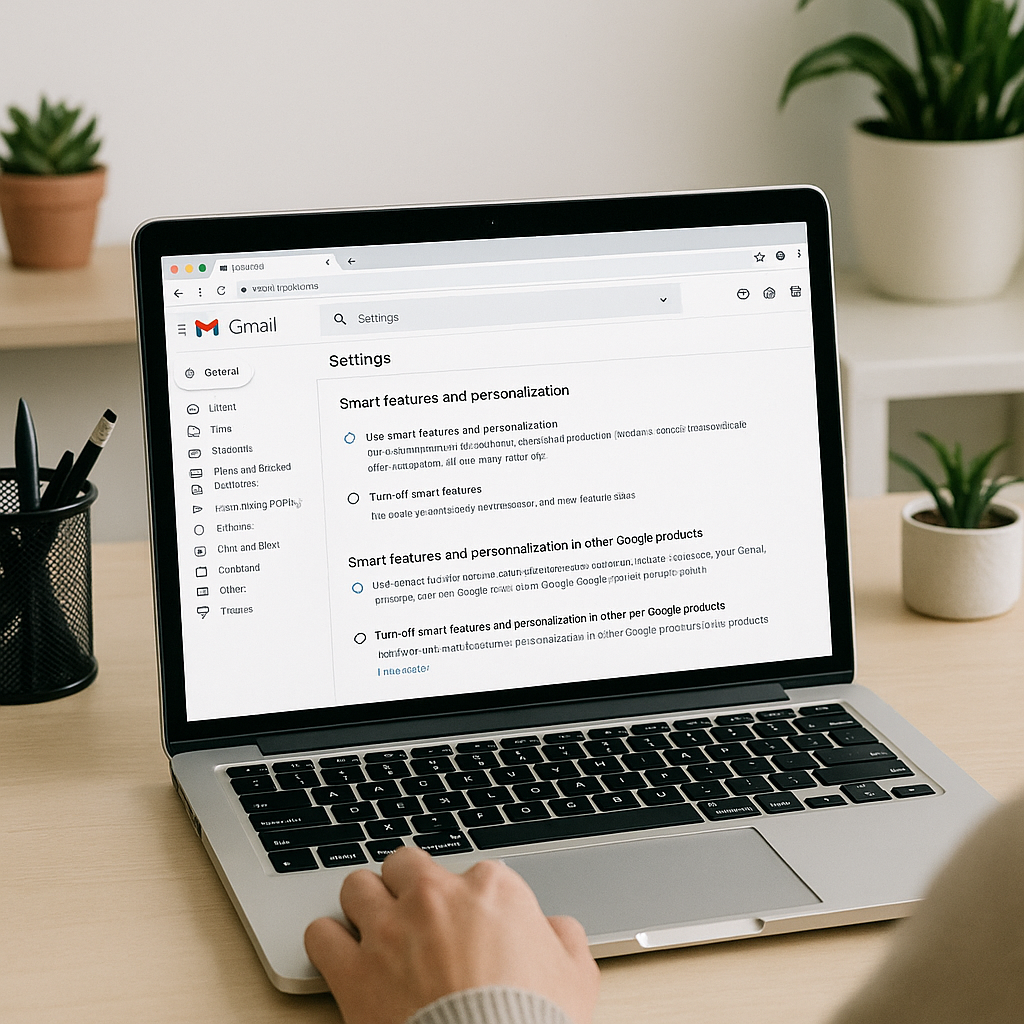
1. Open Gmail and click on the cog icon in the top right corner.
2. Select “See all settings” from the dropdown menu.
3. Under the **General** tab, scroll to **Smart features**.
4. Uncheck **Turn on smart features in Gmail, Chat, and Meet**.
By completing this step, you will disable the first round of AI-driven features shared across Gmail, Chat, and Meet.
### Step 2: Adjusting Workspace Settings
1. While still in the settings menu, navigate back to the cog icon.
2. Again choose “See all settings” for Gmail.
3. Under the **General** tab, click on **Manage Workspace smart feature settings**.
4. Toggle off **Smart features in Google Workspace**.
Keep in mind that turning off these features may remove critical functionalities like basic spelling and grammar checks, which can have significant implications for your day-to-day operations.
### Step 3: Choosing Selective Features
If you’re not ready to disable all smart features but still wish to limit Gemini’s influence, consider the following features you can customize in Gmail:
– **Smart Compose**: Turn off the predictive writing suggestions to avoid distractions.
– **Nudges**: Disable notification prompts for unanswered emails, which can often feel intrusive.
– **Smart Reply**: By opting out of automatic response suggestions, you can write emails in your own voice without AI interjection.
Remember, Google’s ecosystem often ties features together, so altering certain functionalities could impact how effectively you can use other apps like Google Docs or Calendar.
## Removing Gemini from Your Workplace Account
If you’re part of a team that utilizes Google Workspace, you may see restrictions in your ability to disable Gemini’s features. Unfortunately, the full capability to remove Gemini lies primarily with your organization’s admin.
It’s crucial to communicate your needs for a distraction-free working environment to your admin. Here’s how they can help:
1. **Communicate User Preferences**: Encourage your admin to assess user preferences regarding AI features.
2. **Admin Controls**: An admin can access advanced settings in Google Workspace to offer a more streamlined experience for their team.
### The Third-Party Approach: Integrating Custom Solutions
While we at [Best Choice](http://web.best-choice.dk) recognize that Google offers a range of functionalities, sometimes off-the-shelf solutions aren’t enough to meet specific business needs. Custom-built solutions can provide the following benefits:
– **Tailored Workflow Automation**: Create a system designed to minimize distractions.
– **Seamless Integrations**: Connect multiple applications to operate under one unified platform without AI complications.
– **Enhanced Data Management**: Streamline tasks like scheduling, responding to emails, and updating records without the overwhelming presence of AI.
Consider how your specific business processes can benefit from a tailored system that considers your team’s workflow requirements.
## Conclusion: Reclaiming Your Productivity
Navigating Google’s evolving suite of applications and their AI features can be daunting. However, by following the steps outlined above, you can begin to de-Gemini your experience, allowing you to focus on what really matters: growing your business efficiently. Should you require assistance in optimizing your digital workspace, feel free to reach out to us at [Best Choice](http://web.best-choice.dk).
We are here to help you craft the perfect digital solutions tailored to your unique operational needs, ensuring you don’t just keep up but thrive in the ever-evolving digital landscape. Let’s create something exceptional together!