# How to Pay with Google Wallet Using Your Samsung Galaxy Watch
In today’s fast-paced world, convenience is a key driver of productivity, especially for business decision-makers and entrepreneurs. Imagine having the power to make payments directly from your wrist, without needing to dig through your bag or pocket for your phone or wallet. This is made possible through Google Wallet on your Samsung Galaxy Watch. With its intuitive interface and seamless integration, setting up and using Google Wallet can greatly enhance your daily operations.
As a company that prides itself on providing tailored digital solutions, we at Best Choice know how important modern tech tools can be for efficiency. In this guide, I will walk you through how to set up and use Google Wallet on your Samsung Galaxy Watch, so you can streamline your payment processes and focus on what truly matters: growing your business.
## Why Use Google Wallet on Your Galaxy Watch?
Using Google Wallet on your Galaxy Watch offers a world of convenience. Whether you’re grabbing a coffee before a meeting, buying supplies, or just treating yourself while you’re out, simply tapping your watch streamlines the transaction. Here are some reasons why it’s worth considering:
– **Hands-Free Payments:** Make transactions effortlessly right from your wrist. No more fumbling with your wallet or phone.
– **Security:** Google Wallet leverages encryption and tokenization for secure transactions, giving you peace of mind.
– **Quick Set-Up:** You don’t need to be a tech guru to set this up. A few quick steps can get you ready to shop.
## Step-by-Step Setup of Google Wallet on Your Samsung Galaxy Watch
Setting up Google Wallet on your Samsung Galaxy Watch is straightforward. Here’s how to do it:
### Step 1: Check Compatibility
Before diving in, ensure your Samsung Galaxy Watch is compatible with Google Wallet. Most recent models should support it. Check your device specifications to confirm.
### Step 2: Install Google Wallet on Your Phone
1. **Download the App:** Open the Google Play Store on your Android phone and download the Google Wallet app.
2. **Sign In or Create an Account:** Follow the instructions to sign in with your Google account, or create one if you don’t already have it.
### Step 3: Add Payment Method
1. **Open Google Wallet on Your Phone:** Tap “Add a payment method” to input your credit or debit card details by scanning or entering them manually.
2. **Verify:** Follow any additional authentication steps your bank requires.
### Step 4: Sync with Your Galaxy Watch
1. **Open the Galaxy Wearable App:** Ensure your Galaxy Watch is connected to your phone.
2. **Select Google Wallet:** Find the Google Wallet option, then follow the prompts to sync your payment methods to your watch.
### Step 5: Activate NFC
To use Google Wallet on your Galaxy Watch, NFC (Near Field Communication) must be enabled. Navigate to your watch settings under connectivity and ensure NFC is turned on.
### Step 6: Start Shopping
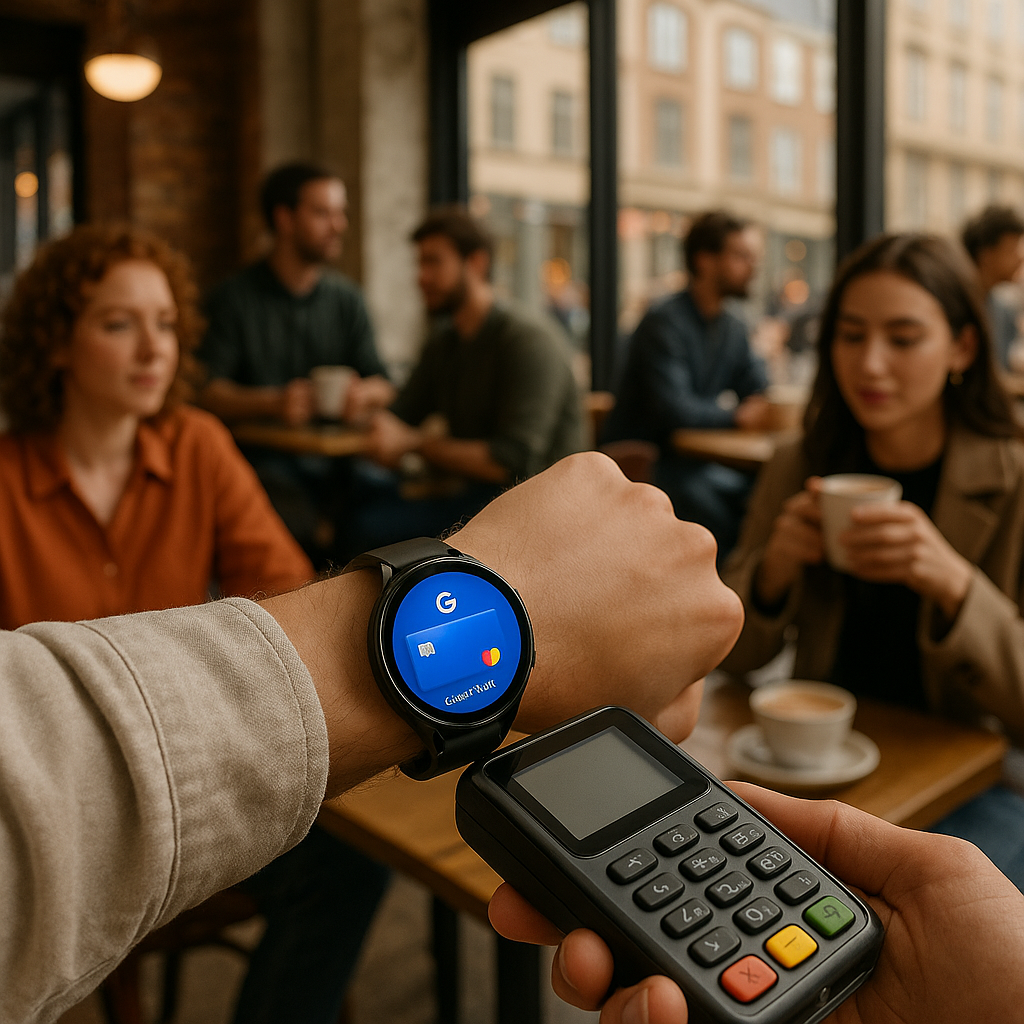
With everything set up, you’re ready to go. To make a payment, unlock your watch, open Google Wallet, and tap it against the terminal at participating retailers. It’s as simple as that!
## Real-World Applications: Enhancing Business Efficiency
Imagine owning a café where your barista can serve customers more quickly with minimal disruption during peak hours. Instead of handling cash or processing payments through a terminal, they can easily swipe a customer’s Galaxy Watch. This not only enhances the customer experience but also accelerates turnover rates.
Similarly, if you’re managing a warehouse, workers can use their watches to make purchases for supplies at nearby stores or even check out using contactless payment systems at suppliers. This speeds up the procurement process and keeps your stock well managed.
### Actionable Tips
– **Regularly Update:** Ensure that your Google Wallet and Galaxy Watch software are updated to the latest versions for security and functionality improvements.
– **Use Multiple Cards Wisely:** Add different cards (personal and business) to Google Wallet for easy management, keeping track of expenses more effectively.
– **Security Check:** Regularly review your transaction history in Google Wallet for any suspicious activity.
## Leveraging Custom Solutions for Your Payment Needs
As you think about integrating technology like Google Wallet into your operations, consider the bigger picture. At Best Choice, we specialize in building custom digital solutions that streamline your processes, whether it’s payment systems or any other operational need. Our experience with tailored solutions allows us to meet your business’s unique demands, ensuring efficiency and effectiveness.
## Conclusion
Incorporating technologies like Google Wallet can enhance everyday transactions and improve overall productivity. Whether you’re an entrepreneur running a café or a decision-maker in a warehouse, using your Samsung Galaxy Watch for payments is an innovative way to access convenience and efficiency. If you’d like to explore how custom digital solutions can further optimize your business operations, don’t hesitate to contact us at Best Choice. Let’s transform the way you do business!