Turn on These Settings to Protect Your Android Phone from Theft
In today’s digital age, smartphones have evolved into indispensable tools for our daily lives, housing a treasure trove of personal and sensitive information. As a business decision-maker or entrepreneur, the security of your devices is paramount. Have you ever thought about how vulnerable your Android phone might be to theft or unauthorized access? I know I have, especially as we continue to rely on technology to streamline our workflows and boost productivity. Here at Best Choice, we believe in being proactive when it comes to protecting your digital assets.
In recent years, Google has introduced some impressive theft-detection features to Android phones, making it easier to safeguard against potential threats. In this article, I’ll walk you through the essential settings you should enable to enhance your phone’s security, illustrating why this matters not just for your personal information but also for your business operations.
Understanding Android’s Theft Detection Features
Android theft-detection features are designed to deter thieves and protect your data. These tools can help you locate your phone if it’s lost or stolen, secure sensitive information, and even wipe your device remotely in case it falls into the wrong hands. But activating these features is only the first step—understanding how they work is crucial to making the most of them.
1. Enabling Find My Device
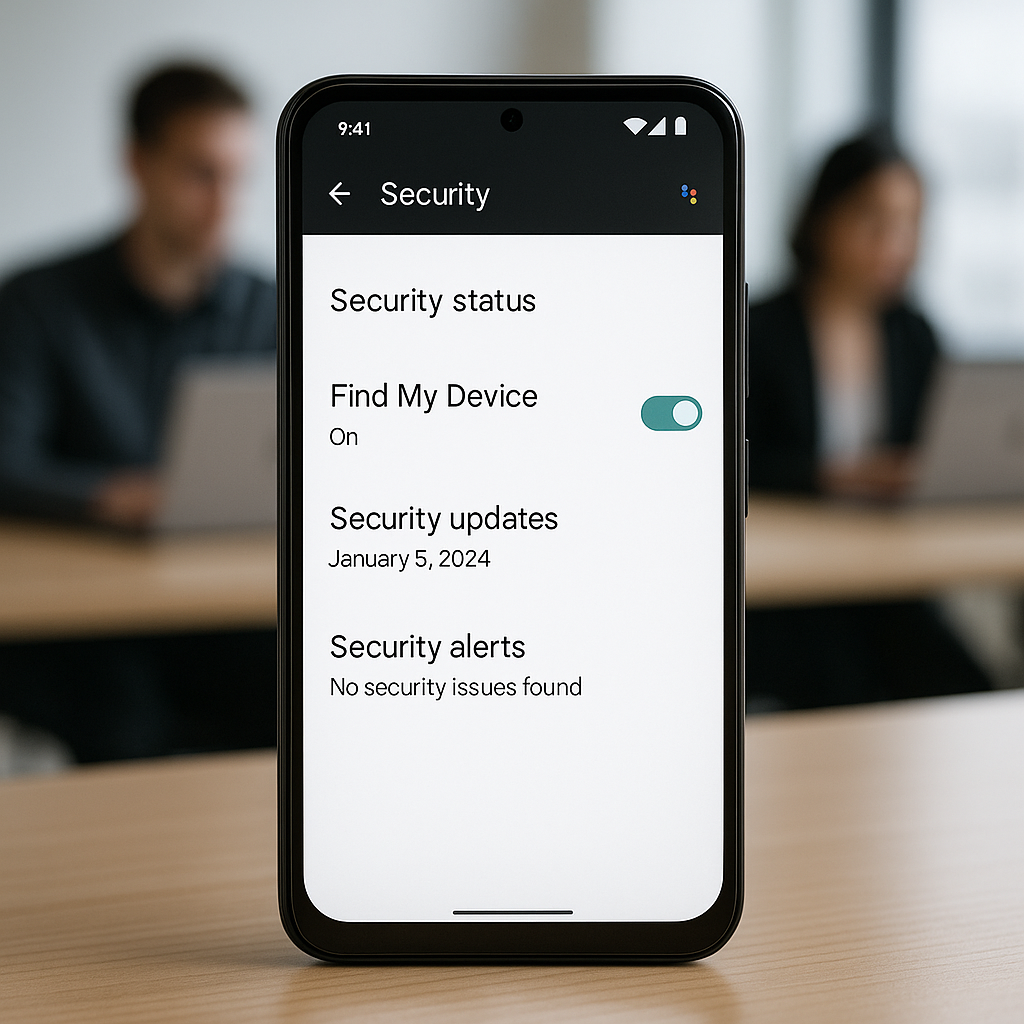
One of the most important tools at your disposal is the “Find My Device” feature. This built-in service allows you to track your phone’s location, lock it, or erase its data remotely. To enable it:
- Go to Settings.
- Tap on “Security”.
- Select “Find My Device” and turn it ON.
This feature is invaluable for local businesses, such as cafes or shops, where employees frequently carry devices. If a phone goes missing, simply track its location to recover it quickly and ensure continuity in your operations.
2. Setting Up Biometric Authentication
Another foundational step is to set up biometric authentication, such as fingerprint scanning or facial recognition. This extra layer can prevent unauthorized access to your device:
- Navigate to Settings.
- Select “Security”, then “Fingerprint” or “Face Unlock”.
- Follow the prompts to register your biometric data.
In industries like healthcare or finance, where sensitive information is typically stored, having biometric measures in place safeguards your data while ensuring a convenient user experience.
3. Utilizing a Secure Lock Screen
While biometrics are helpful, they should never replace a secure lock screen. A strong password or PIN code remains a critical first line of defense:
- Go to Settings.
- Tap on “Security” and select “Screen Lock”.
- Choose your method: Password, PIN, or Pattern.
Implementing a secure lock screen can significantly deter thieves. A good example is warehouse operators who manage inventory through mobile apps; every measure you take towards securing these devices adds a level of security to your business operations.
4. Keeping Your Software Updated
Updates often include critical security patches that can protect you from vulnerabilities. Make sure automatic updates are enabled:
- Go to Settings.
- Select “System”, then “System Update”.
- Turn on “Auto-update” if available.
For online stores, keeping your OS current is vital. Cybercriminals often target outdated software, so staying updated reduces the risk of a data breach that could affect your customers’ trust and your revenue.
5. Download Apps from Trusted Sources Only
While the Google Play Store is generally reliable, always exercise caution when downloading apps. Malicious apps can compromise your device:
- Stick to well-known brands and developers.
- Read reviews and check ratings before downloading.
For businesses that rely on mobile applications for customer bookings or service management, ensuring only secure applications are used protects sensitive data like customer information and payment details.
6. Using Two-factor Authentication for Apps
Last but not least, two-factor authentication (2FA) provides an additional layer of security for apps that handle sensitive data. Whenever possible, enable 2FA on applications related to banking, CRM, or communication:
- In your app settings, look for “Security” or “Privacy”.
- Follow the instructions for enabling 2FA.
This feature can help prevent unauthorized access to crucial business operations, ensuring that even if someone gains access to your password, further authentication would still be necessary.
Conclusion
In a world where the digital landscape is forever shifting, safeguarding your Android phone is not just a matter of personal concern—it’s a business necessity. By turning on the right settings, you can significantly bolster your defenses against theft and unauthorized access. Here at Best Choice, we understand the importance of security in modern technology. If you’re looking for additional support, whether it’s integrating advanced security measures or automating your business processes, don’t hesitate to reach out to us. Let’s secure your business, one device at a time.