# Getting an ‘iPhone Unavailable’ Message? Here’s How to Fix It
As a business decision-maker or entrepreneur, it can be frustrating when technology doesn’t work like it should. One common issue that can interrupt your day is the dreaded “iPhone Unavailable” message. Whether you use your iPhone for communication with clients, managing schedules, or accessing essential business applications, being locked out can pose a significant problem. But don’t worry; at Best Choice, we are here to guide you through the steps to regain access to your device.
## Understanding the ‘iPhone Unavailable’ Message
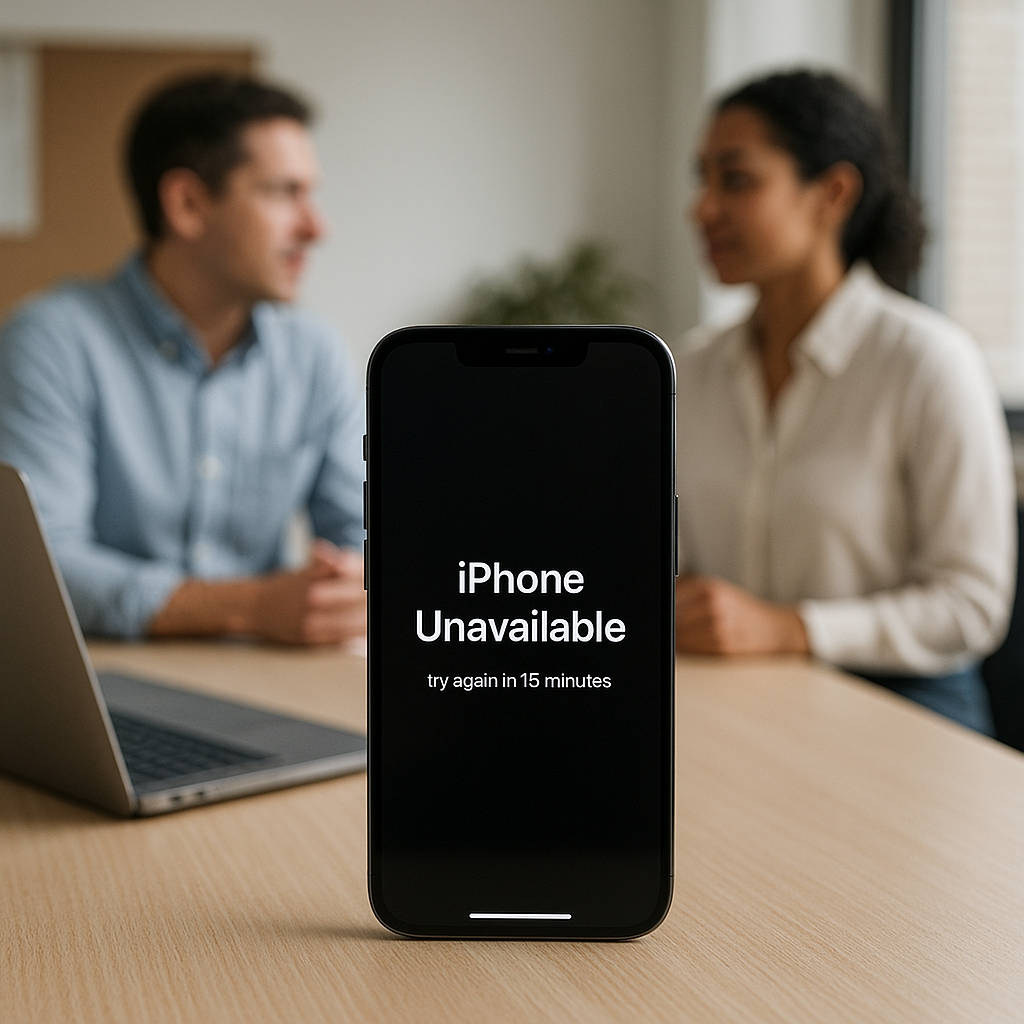
The “iPhone Unavailable” message appears when you attempt to access your iPhone without entering the correct passcode after multiple failed attempts. This security feature guards your personal and business data from unauthorized access. However, it can turn into a headache when you genuinely need to access your device. If you find yourself facing this challenge, here are practical steps to resolve the issue.
### 1. Using Your Old Passcode
If you remember your previous passcode, you can unlock your iPhone easily. Enter the old passcode, and if it’s correct, you’ll regain access. This solution works best for those who frequently change their passwords and might have forgotten the latest one. Always keep a record of your passwords in a secure location to avoid such situations in the future.
### 2. Apple ID Password Recovery
If you don’t remember your passcode, the next best step is to recover your Apple ID password. Go to the Apple ID login page, choose “Forgot Password?”, and follow the prompts. You’ll need access to your recovery email or phone number associated with your account to reset your password. This solution is vital, as your Apple ID also unlocks other Apple services that may be critical for your business.
### 3. Restore via iTunes or Finder
If neither your old passcode nor your Apple ID password works, a more drastic solution is to restore your iPhone via iTunes (on Windows or older macOS) or Finder (on macOS Catalina or newer). Here’s how:
– **Connect your iPhone to your computer** using a USB cable.
– **Open iTunes or Finder** and select your iPhone when it appears.
– **Put your device into recovery mode**: For iPhones X and later, press and quickly release the Volume Up button, press and quickly release the Volume Down button, and then press and hold the Side button until you see the recovery mode screen.
– **Choose the option to Restore** when prompted.
This step will erase your device and its passcode, allowing you to set it up as new or restore from a backup. Before proceeding, ensure you have a recent backup of your data; restoration can save you from losing important information.
### 4. Seek Professional Assistance
When all else fails, sometimes it’s best to seek the assistance of professionals. At Best Choice, we deploy customized solutions tailored for businesses, including troubleshooting and setting up devices securely. Our expertise can help you navigate through tech troubles efficiently, ensuring your Apple devices serve your business needs seamlessly.
### 5. Prevent Future Issues
To mitigate the risk of facing the “iPhone Unavailable” message again, consider these recommendations:
– **Enable Face ID or Touch ID**: Biometric security options can provide a quick and secure way to access your device without needing to remember complex passcodes.
– **Keep Your Software Updated**: Regular updates help safeguard your device from glitches that might lead to these issues. It ensures access to the latest security features.
– **Use Password Managers**: Secure password managers can help you manage your passwords effectively, making it easier to retrieve them when forgotten.
### 6. Regular Backups
As a business decision-maker, always ensure that your data is backed up regularly. Whether through iCloud or a computer, backing up your data prevents potential losses during an unforeseen circumstance. At Best Choice, we emphasize the importance of routinely backing up not just your devices but all vital business data.
## Conclusion
Experiencing an “iPhone Unavailable” message can disrupt your daily operations, but with the right steps, you can regain access quickly. Remember that whether you are dealing with a simple passcode issue or require professional guidance, there’s help available.
At Best Choice, we are experts in IT consulting and can assist you with customized solutions to keep your business running smoothly. If you’re facing this issue or need any IT support, feel free to contact us. Let’s ensure that your technology empowers your business, rather than hinders it!