# How to Leverage Your MacBook’s Built-In Backup Tool for Cost-Effective Data Management
In today’s rapidly evolving digital landscape, the importance of securely backing up your data cannot be overstated. As an entrepreneur or business decision-maker, the last thing you want is to suffer data loss due to unexpected hardware failures or cyber incidents. Luckily, if you’re using a MacBook, Apple provides a built-in solution that can help you maintain your files without the ongoing costs associated with cloud storage.
At Best Choice, we understand that every business is unique, which is why using a custom-built solution tailored to your specific needs is crucial. In this article, I’ll dive into how you can utilize your MacBook’s built-in backup tool effectively, explore its benefits, and discuss the advantages of a tailored approach to data management.
## Understanding macOS’s Built-in Backup Tool
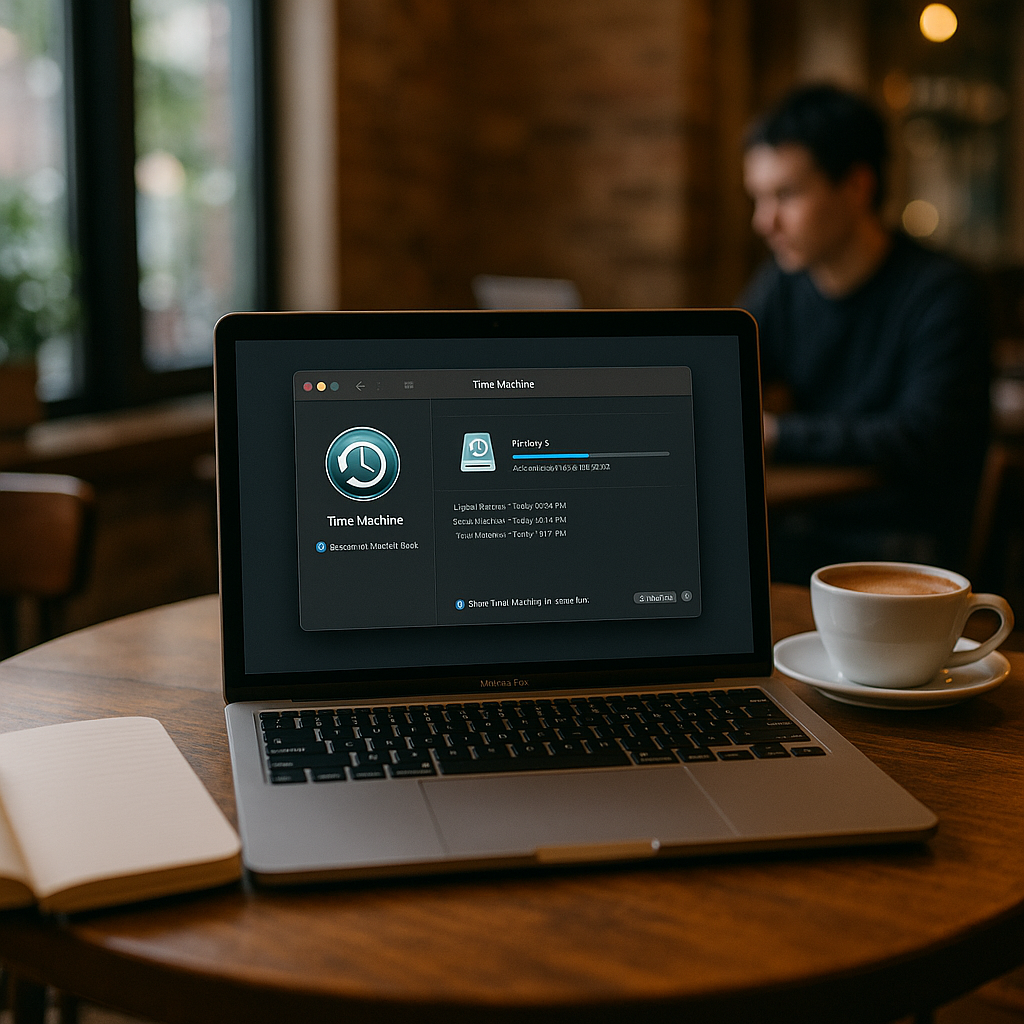
The primary tool that macOS offers for backing up files is Time Machine. It’s user-friendly and requires minimal technical knowledge. Once set up, Time Machine automatically backs up files on your Mac every hour, retaining earlier versions that can be accessed anytime.
### Setting Up Time Machine
**Getting Started:**
1. **Connect an External Drive:** The first step is to connect an external hard drive. It could be a USB drive or a dedicated backup drive.
2. **Select Drive in Time Machine:** Go to System Preferences > Time Machine and select “Select Backup Disk.”
3. **Choose your external drive:** Select the connected external drive as your backup destination.
**Automatic Backup Scheduling:**
Once configured, Time Machine will automatically back up your files, and you can adjust settings to suit your preferences. This frequency ensures that you won’t lose significant amounts of data, which is crucial for maintaining your business operations.
### The Advantages of Using Time Machine for Businesses
1. **Cost-Effective Solution:** Using Time Machine allows you to avoid monthly fees associated with cloud storage. With the price of external hard drives continuing to decrease, it’s easier than ever to implement a robust backup strategy.
2. **Local Control:** By keeping your backups local, you mitigate the risks associated with cloud services such as data breaches or service outages. Your data remains within your control, providing peace of mind.
3. **Ease of Access:** Accessing backed-up files locally streamlines workflows. For example, if you’re running a cafe and need to restore a previous version of your inventory list, Time Machine allows you to do this quickly without waiting for a cloud transfer.
### Real-World Application: Tailored Backup Solutions
At Best Choice, we often create custom solutions that integrate seamlessly with existing services, enhancing local backup options. For instance, let’s consider a scenario with a medical clinic.
#### Case Example: A Medical Clinic
In a clinic setting, patient records are vital. By leveraging Time Machine alongside our bespoke solutions, you could implement a file management system that organizes all patient data in specific folders. This setup allows the clinic’s personnel to quickly locate and securely back up sensitive information while adhering to regulations like GDPR.
### Practical Tips for Optimizing Your Backup Strategy
1. **Regular Check-Ups:** Regularly check the status of your Time Machine backups to ensure everything is functioning properly. This practice prevents surprises when you need access to your backups.
2. **Invest in a Quality Drive:** Make sure you invest in a reputable external hard drive to avoid malfunction. Assess the size based on your data requirements to ensure you have enough capacity for the future.
3. **Consider Encryption:** If sensitive data is involved, consider utilizing FileVault for encryption while backing up. This adds an extra layer of security to your data.
### When to Consider Cloud Solutions
While local backups via Time Machine are excellent, some businesses may still need cloud solutions for accessibility and collaboration. For example, an online retail store may require remote access to data for their team across multiple locations.
At Best Choice, we can help integrate solutions that combine local and cloud backups, ensuring you benefit from both approaches without unnecessary costs.
### Conclusion
In conclusion, leveraging your MacBook’s built-in backup tool not only saves you money but also enhances your control and accessibility. By utilizing Time Machine, you can enhance your business resilience against data loss. However, every business has unique needs, and at Best Choice, we can assist you in creating a tailored data management strategy that aligns with your operational requirements.
Are you ready to take the next step in enhancing your data management? Contact us at Best Choice today to explore your options for custom solutions that fit your business.