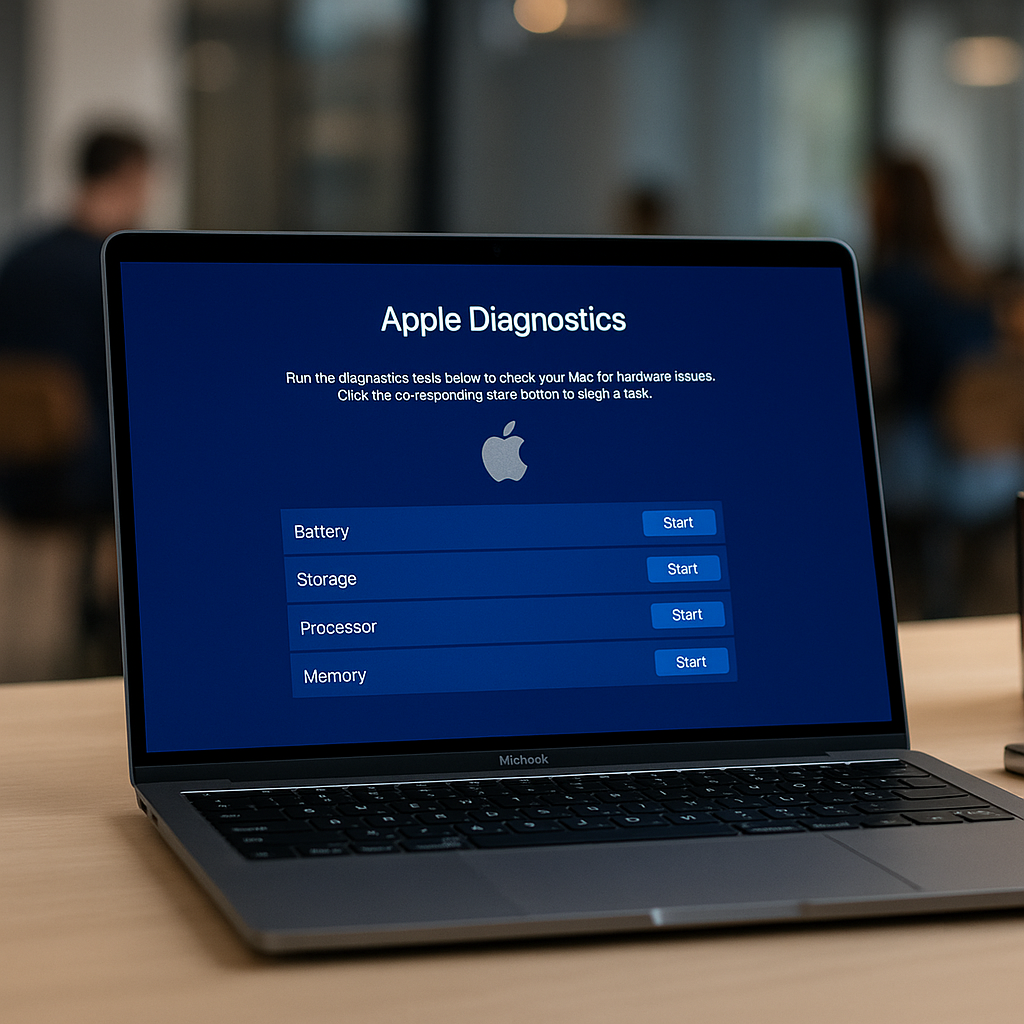
How to Find Your MacBook’s Diagnostic Menu
As an entrepreneur or business decision-maker, your technology needs to work for you, not against you. While we at Best Choice hope you won’t have to troubleshoot your devices often, knowing how to identify hardware issues is crucial for smooth operations. One invaluable tool at your disposal is Apple Diagnostics; it’s a hidden menu that enables you to delve deeper into potential problems your MacBook might encounter.
In today’s fast-paced business environment, where every minute counts, having immediate access to diagnostic tools can save you time and prevent costly downtimes. Imagine running a bustling online store or managing a busy clinic where your tech needs to be flawless so you can focus on your clients. In cases where you do encounter trouble, accessing the diagnosis menu can be your first step towards a resolution.
What is Apple Diagnostics?
Apple Diagnostics is an integral part of your MacBook’s system that enables users to run a series of tests to identify potential hardware issues. When your MacBook starts exhibiting symptoms like strange noises, slower performance, or unexplained crashes, accessing this menu can provide insights into the problem. It’s designed to not only point you towards a solution but also to reassure you that your device is capable of recovering from many common issues.
How to Access the Diagnostic Menu
Let’s walk through how you can access the Apple Diagnostics menu. It’s straightforward, and you can do it yourself in just a few simple steps:
- Ensure your MacBook is turned off.
- Turn it on again while holding the D key.
- Keep holding D until you see either the Apple Diagnostics screen or a prompt indicating that you can start the tests.
After the initial setup, your Mac will run various tests to pinpoint any hardware issues. Once completed, the system will provide you with reference codes for any found issues, which are beneficial for discussing with your IT support team or with us at Best Choice.
What to Look For
During the diagnostic test, the system evaluates several hardware components, including:
- Memory: Checks for RAM issues
- Logic Board: Evaluates overall system functionality
- Storage: Tests the health of your hard drive or SSD
- Graphics: Inspects the graphics hardware
Understanding these functionalities can not only improve your response to hardware problems but also amplify your IT strategy moving forward.
Common Issues Identified by Apple Diagnostics
Some common issues that Apple Diagnostics can help identify include:
- Faulty RAM: If your Mac crashes frequently, this could indicate RAM failure.
- Storage Problems: Unexpected slowness or crashed applications can often be traced back to hard drive issues.
- Component Failures: Overheating or unexpected shutdowns may be due to a failing logic board or other internal components.
By pinpointing these issues early, businesses can avoid bigger problems down the line, ensuring that your team remains productive.
When and Why to Use Apple Diagnostics?
It’s important to know when to use Apple Diagnostics. Ideally, you should use it when:
- Your MacBook shows signs of hardware malfunctions.
- You notice poor overall performance that cannot be attributed to your software.
- You suspect that recent changes or updates may have impacted your hardware.
Using this tool empowers you to make informed decisions about repairs or replacements, leading to improved workflow efficiency and minimized operational disruption.
The Bigger Picture: Enhancing Your IT Infrastructure
While Apple Diagnostics is a great start for identifying hardware issues, it’s just one piece of the puzzle. At Best Choice, we specialize in creating custom IT solutions tailored to your specific business needs. This means integrating diagnostic tools with your broader IT strategy, ensuring seamless operation right from hardware to software.
Consider a café, for example, where POS systems are critical for day-to-day operations. If those systems lag due to hardware issues, it affects customer service and sales. An IT solution that includes regular diagnostics and maintenance can lead to increased revenue and improved customer satisfaction.
Conclusion: Take Control of Your Tech!
Understanding and accessing your MacBook’s diagnostic menu is a key skill for any business leader today. The proactive identification of potential issues can save time and help maintain operational integrity. If you ever find yourself in doubt or face issues beyond your expertise, don’t hesitate to reach out to us at Best Choice. We are here to help you navigate technology challenges and turn them into opportunities for growth.
Your tech should serve you efficiently, and we are committed to making that a reality for your business!