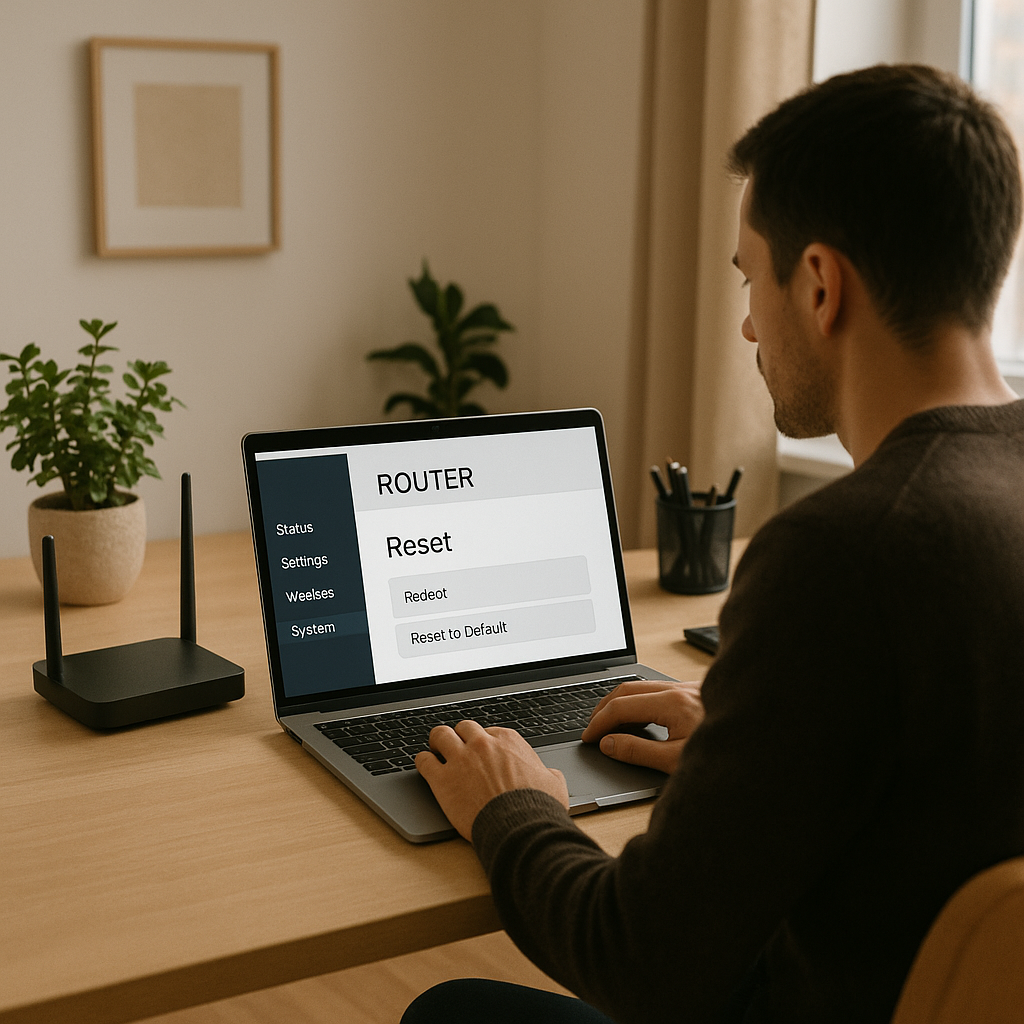
# Here’s How to Reset Your ASUS Router
In today’s fast-paced digital landscape, having a reliable internet connection is vital for both personal and business success. As a business decision-maker or an entrepreneur, you understand the significance of maintaining a stable network. However, there may be times when your internet connection becomes slower than usual. In many cases, the culprit behind this issue is your router. One effective way to resolve internet connectivity issues is by resetting your ASUS router, and in this article, I’ll guide you through the steps to do so.
Resetting your router can help eliminate pesky connectivity issues, restore optimal performance, and even improve security settings. It’s a simple yet often overlooked solution that can save you time, frustration, and even money.
## Why You Might Need to Reset Your Router
There are several reasons why you may find it necessary to reset your ASUS router:
– **Sluggish Internet Speeds:** A temporary glitch in the router’s settings may cause your internet speeds to dwindle.
– **Frequent Disconnects:** If your devices are frequently disconnecting from the internet, it might be time for a reset.
– **Forgotten Passwords:** If you have forgotten your router’s admin password and can’t access settings, a reset can help restore it to factory defaults.
– **Network Issues:** Sometimes, persistent network issues can be solved by rebooting the router.
As a business owner, addressing these connectivity issues promptly can enhance productivity and efficiency in your operations.
## How to Restart Your ASUS Router
### 1. Soft Reset
A soft reset is the simplest way to give your router a refresh without losing your settings. Here’s how to do it:
– **Unplug the Router:** Disconnect the power supply from your router.
– **Wait:** Allow it to sit for about 30 seconds to one minute.
– **Plug it Back In:** Reconnect the power and let it boot up completely.
This is a quick way to clear temporary issues, and for many businesses using devices like VoIP or cloud services, it can mean the difference in maintaining seamless communication during peak hours.
### 2. Hard Reset
If a soft reset doesn’t resolve the issues, a hard reset might be necessary. Be aware that this process will erase all custom settings, returning the router to its factory defaults.
– **Identify the Reset Button:** Locate the reset button, typically found on the back of the unit.
– **Press and Hold:** Using a paperclip or a pin, press and hold the reset button for about 10 seconds.
– **Wait for Reboot:** The router will restart automatically. Wait a few minutes for it to fully reset.
### 3. Configuration After Reset
Once the router is reset, you’ll need to reconfigure your settings:
– **Connect to the Default Network:** Use a computer or mobile device to connect to the router’s default network (SSID).
– **Login to the Router Interface:** Use the default username and password usually found on the router or in the manual.
– **Change Necessary Settings:** Set up your Wi-Fi network, including creating a new password and adjusting security settings (WPA2 recommended for enhanced security).
As you manage devices like a CRM system or inventory database for your business, remember that a well-configured router can influence the overall efficiency of these tools.
## Additional Tips for Optimizing Your ASUS Router
### 1. Update Firmware Regularly
Keeping your router’s firmware up-to-date can improve security and performance. Set a reminder to check for updates regularly using the router’s web interface.
### 2. Position the Router Wisely
The physical location of your router can significantly affect signal strength. Placing it in a central location, away from walls and obstructions, ensures better coverage throughout your office or store.
### 3. Limit Connected Devices
If too many devices are connected, it can slow down the network. Evaluate the number of connected devices and disconnect any that aren’t in use to improve performance.
### 4. Implement Quality of Service (QoS)
For businesses that rely on specific applications (like video calls or online order processing), implementing QoS settings can prioritize bandwidth for essential services, enhancing their performance.
### 5. Secure Your Network
Make use of strong passwords and consider enabling network encryption. Keeping your network secure helps to avoid unauthorized access, which can significantly slow down your internet speeds.
## Conclusion
Resetting your ASUS router can be a straightforward and effective way to resolve connectivity issues, enhance performance, and ensure a secure network for your business. By employing the techniques outlined in this article, you can return to a seamless online experience that boosts productivity and helps keep your operations running smoothly.
If you find yourself needing assistance with networking solutions that optimize your business’s digital presence, reach out to us at Best Choice. We’re here to provide tailored IT consulting and automation solutions that perfectly fit your needs.