“`html
How to Use the Magnifier on a MacBook to Zoom in on Faraway Text
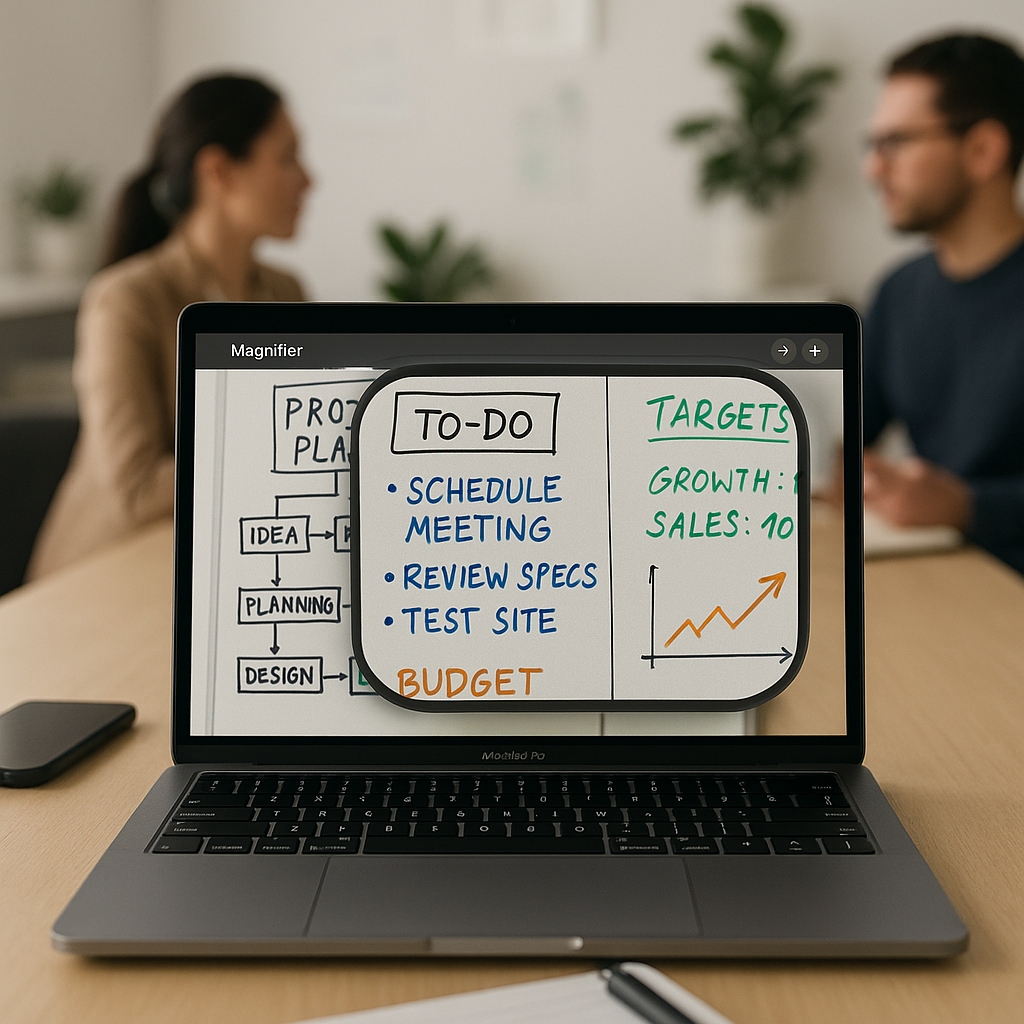
As a business decision-maker, it’s essential to leverage technology effectively to enhance productivity. One of the lesser-known gems in the Apple ecosystem is the Magnifier feature, which has now made its way to MacBooks. This functionality is particularly useful in environments where clear visibility is crucial, such as classrooms, conference rooms, or even when reviewing documents at a distance. At Best Choice, we understand the value of maximizing your tools, and here, I will guide you through how to use the Magnifier on your MacBook to zoom in on faraway text.
This feature becomes invaluable, especially during meetings or presentations, where you need to focus on detailed information that might be too small to see at a distance. Whether you are in a corporate setting, a creative studio, or any other professional space, having the ability to magnify text can greatly improve your workflow and help you make quicker, better-informed decisions.
Setting Up the Magnifier on Your MacBook
The Magnifier feature requires macOS 26 Tahoe or later. Before diving in, make sure your MacBook is updated. You can use a built-in camera, a third-party camera, or an iPhone through Apple’s Continuity feature. This flexibility allows you to choose the camera that suits your environment best, whether you’re zooming in on a presentation slide or reading fine print from a document on a desk.
How to Use the Magnifier to Identify and Display Text
Using Magnifier to capture and highlight text is straightforward. Here’s how it works:
- Open Magnifier: Start the application from your MacBook’s applications menu.
- Select Camera: Click on the Camera section in the menu bar. Choose your Desk View camera.
- Access Reader Mode: Click on the Reader icon, resembling a document, to enter text identification mode.
- Customize Settings: Use the sidebar menu to modify text color, font, and background settings for easier reading.
The ability to format text can be particularly beneficial in a work setting. For instance, if you’re in a warehouse and need to read labels from a distance, Magnifier can assist in presenting this information in a legible format.
Capturing Images for Later Reference
Magnifier also allows you to capture images that you can refer to later. This is beneficial for anyone in a fast-paced environment, like a clinic or a busy office, where important information is constantly being disseminated. By clicking the camera button within the app, you can snap a photo of the text or image you’re viewing. Captured images will appear in the sidebar, letting you review and zoom in on them whenever you need.
Using Magnifier as a Zoom Tool for Personal Needs
Not only does Magnifier help with reading text, but it can also be a useful tool for personal grooming and self-checks. You can switch to your MacBook’s built-in webcam to zoom in on your face. This is helpful for tasks like applying makeup or doing close-up tasks.
- Open Magnifier: Start the app.
- Select Camera: If you prefer, switch to your built-in webcam.
- Adjust Zoom: Use the zoom slider to achieve your desired view.
Many of our clients, like those running clinics and salons, have found this feature particularly valuable for ensuring precision in their work.
Enhancing Meeting Experience
The Magnifier feature can significantly elevate your meeting experience. If you’re presenting, instead of straining your eyes to read text on a distant screen, you can use Magnifier to focus on the important parts. This functionality can turn a challenging presentation into a smooth, interactive experience.
Final Insights: Mastering Your MacBook’s Magnifier
Incorporating the Magnifier feature into your daily workflow not only simplifies your tasks but also boosts your overall productivity. It works seamlessly across different environments—be it the classroom, office, or even while working from home.
If you’re interested in learning more about how technology can help streamline your business processes, we invite you to reach out to Best Choice. Let’s explore how we can implement tailored digital solutions to meet your unique business needs.
Conclusion
By understanding and utilizing the Magnifier feature on your MacBook, you are taking a significant step towards enhancing your workflow and efficiency. Whether it’s for personal use or in a professional setting, this tool can provide unparalleled assistance. Don’t hesitate to contact us at Best Choice to learn about other tech solutions that can boost your productivity and help your business thrive.
“`