# How to Stop Audio from Auto-Playing on Android Auto
In today’s fast-paced world, convenience is king, especially when we are on the go. Android Auto comes equipped with a full range of features designed to make our driving experience smoother and more enjoyable. One such feature is the audio auto-play functionality, designed to start your favorite music or podcasts as soon as you connect your phone to your vehicle. However, while this feature can be a blessing, it may not suit everyone’s needs. There may be times when you want to stop audio from auto-playing, especially if you prefer a quieter ambiance or if you’re listening to something different on your phone.
At Best Choice, we understand that technology should work for you—not the other way around. Whether you are a small business owner, an entrepreneur, or a busy professional, controlling your tech is an essential part of maximizing efficiency and focus. Here’s how you can easily turn off the auto-play feature in Android Auto so you can enjoy your drives just the way you like them.
## Understanding Android Auto’s Auto-Play Feature
Before diving into how to disable auto-play, it’s essential to understand why this feature exists. Android Auto is engineered to streamline your driving experience. As soon as you connect your smartphone, apps begin to function, and media plays automatically, reducing the hassle of manually starting audio. While this is particularly popular among commuters or those frequently on the road, it can become annoying if you prefer silence or distraction-free time.
## How to Disable Auto-Play on Android Auto
### 1. **Launch Android Auto**
Start by connecting your Android smartphone to your car’s system using a USB cable or wirelessly (if your vehicle supports it). Make sure Android Auto is launched on your car’s display.
### 2. **Access App Settings**
Navigate to the settings menu in the Android Auto interface. This is typically represented by a gear icon, which gives access to various app and connectivity settings.
### 3. **Choose Audio Settings**
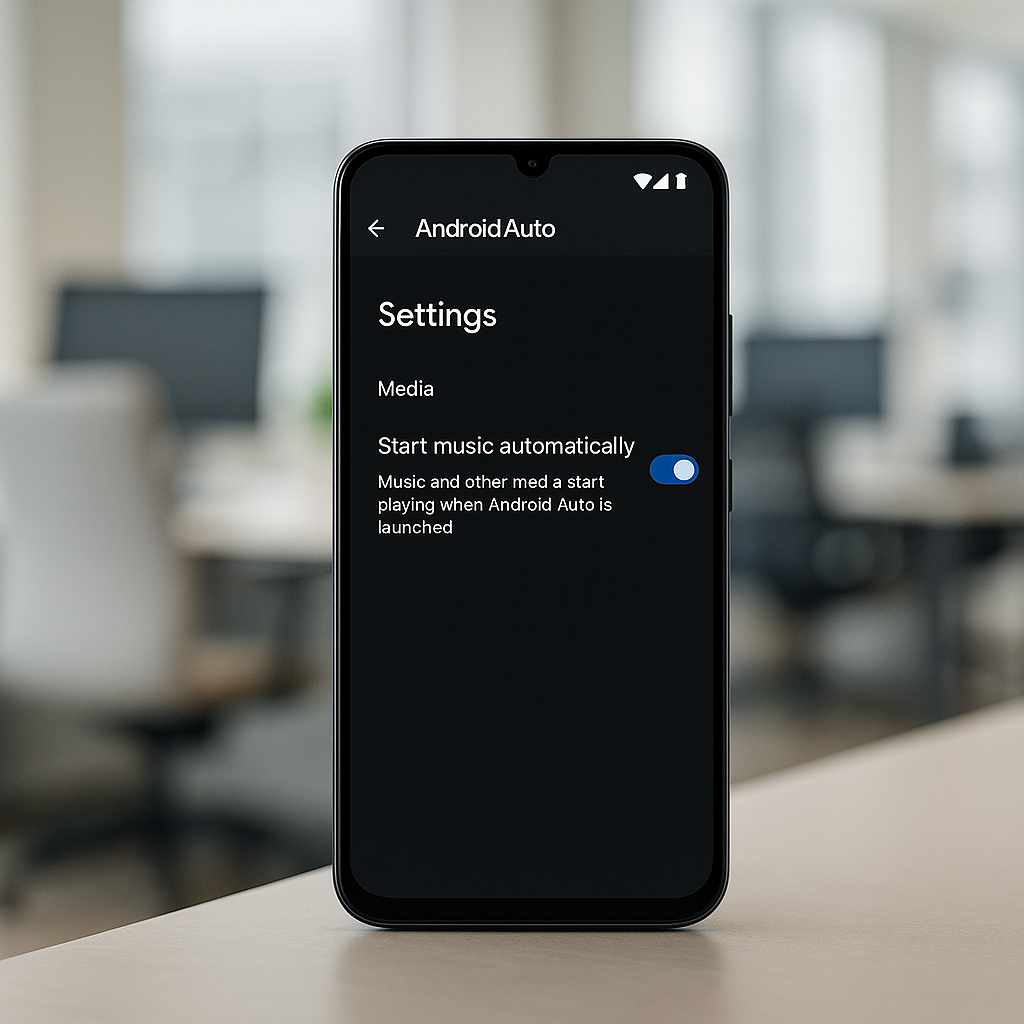
Look for audio settings or media controls. Depending on your version of Android Auto, you may find the auto-play settings under terms like “media,” “audio,” or “playback.”
### 4. **Disable Auto-Play**
Within the audio settings, you should see an option labeled “Auto-Play” or similar. Toggle this option off. This action should stop music or podcasts from playing automatically the next time you connect your device.
### 5. **Test Your Changes**
Once you’ve disabled the auto-play feature, disconnect and reconnect your device to ensure the settings worked. Check that your preferred audio requires manual initiation.
## Considerations for Regular Use
Disabling auto-play can be beneficial, but it’s essential to weigh your options. If you often use your car for work meetings or to listen to audiobooks, you might find the feature helpful for maintaining productivity. However, if your focus is primarily on driving with minimal distractions, then turning off auto-play is advisable.
## Real-World Applications of Custom Solutions
At Best Choice, we often tailor solutions for businesses that integrate technology seamlessly into their operations. For instance, consider a clinical practice using mobile apps for patient scheduling and communication. Many clinics now rely on Android Auto for hands-free calling. In such a situation, doctors might prefer to manage calls without sudden audio distractions—hence the need for disabling auto-play during their drives.
Likewise, think about a small cafe owner who utilizes delivery apps and needs their attention focused on coordinating orders when driving. Connecting their phone to the car’s system without the immediate onset of music allows them to channel their energy into dispatching those orders efficiently.
## Additional Tips for Android Auto Users
– **Limit Notifications:** Besides disabling auto-play, you can also manage notifications while using Android Auto. Less noise can lead to a more focused and peaceful drive.
– **Optimize Other Apps:** Some apps may still auto-play music even if the main settings are turned off. Check individual app settings to ensure a smooth experience.
– **Stay Updated:** Always ensure you are using the latest version of Android Auto to take advantage of new features and fixes.
## Conclusion
So there you have it! Disabling the audio auto-play feature on Android Auto allows you to customize your in-car experience to better fit your lifestyle or business needs. By controlling audio playback, you can focus more on driving or engage in other tasks without unnecessary distractions.
If you are looking to enhance or streamline your business operations further, don’t hesitate to reach out to Best Choice. We are here to provide tailored solutions that work for your specific needs, whether it be through mobile apps, cloud solutions, or other digital services.
Remember, your technology should enhance your productivity, not detract from it!