# How to Add and Customize Your CarPlay Widgets
In the ever-evolving landscape of technology, convenience plays a vital role in how we interact with our devices, especially in our vehicles. As a business decision-maker or entrepreneur, you understand that time is money. That’s why solutions that enhance our efficiency are worth exploring. One such standout feature is CarPlay’s widgets. These widgets allow us to quickly access essential information without being distracted or overwhelmed while driving.
At Best Choice, we believe that leveraging technology for ease of use is crucial to maintaining a productive workflow. By using custom-built solutions, we help our clients tap into the power of automation and streamline operations across various sectors. Today, let’s delve into how you can add and customize your CarPlay widgets to elevate your driving experience, and how we can assist in implementing these solutions effectively.
## Understanding CarPlay Widgets
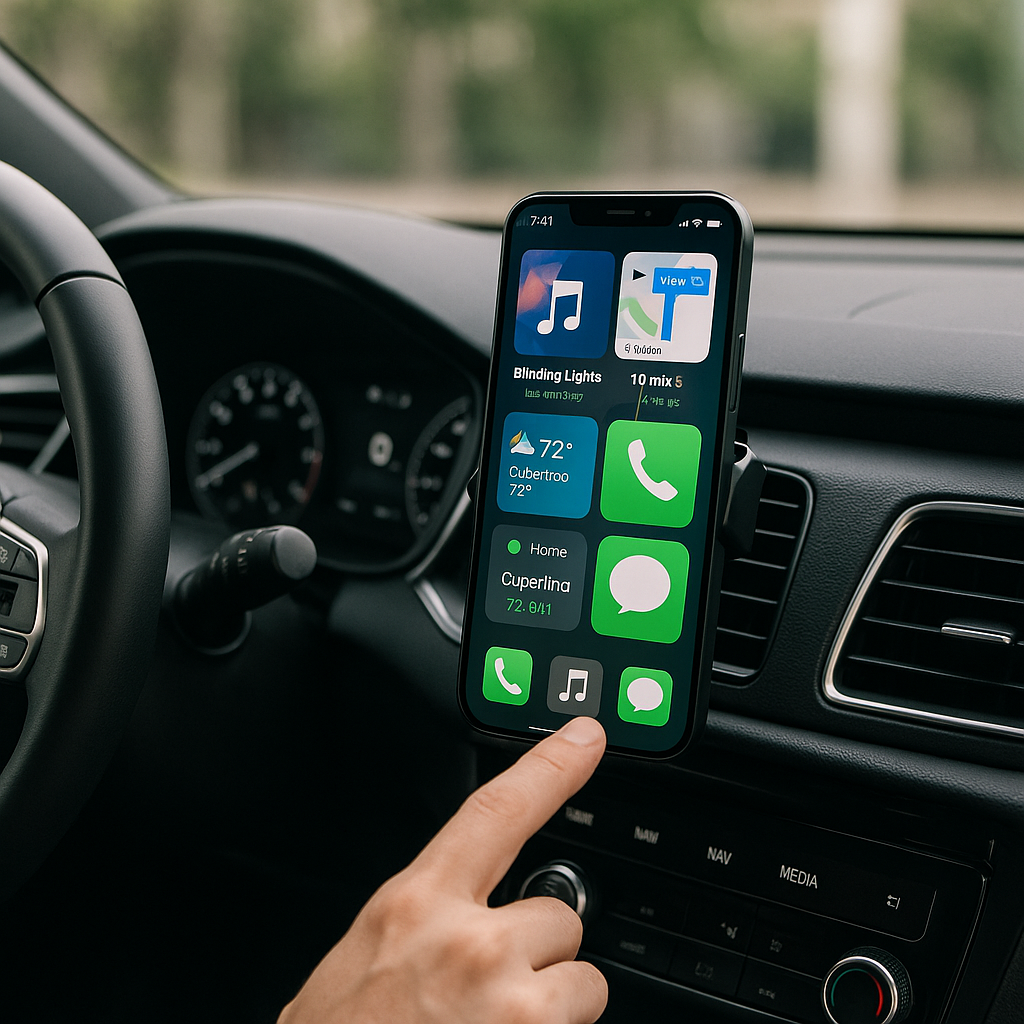
CarPlay’s widgets serve as quick access points to apps and functions that enhance your driving experience. They neatly display relevant information on your vehicle’s dashboard, allowing you to stay focused on the road ahead. From navigation prompts to music controls, widgets simplify the interface, making it easier and safer to use while driving.
### Benefits of Using CarPlay Widgets
Using CarPlay widgets offers numerous advantages. Here are some of the key benefits:
– **Increased Efficiency**: Quickly check maps, messages, or music without having to switch between apps.
– **Enhanced Safety**: Fewer distractions mean more focus on driving.
– **Customization**: Tailor your dashboard to suit your specific needs, ensuring quick access to the information you value most.
As a business owner, think about how this efficiency translates into your daily operations. By minimizing the time spent on navigating interfaces, you can dedicate more time to core business activities.
## Adding CarPlay Widgets
### Step-by-Step Guide
1. **Connect Your iPhone**: Start by connecting your iPhone to your car using a USB cable or via Bluetooth.
2. **Access the Home Screen**: Once connected, tap the CarPlay icon on your vehicle’s display.
3. **Open the Apps Screen**: Swipe through the app icons to find the ones that support widgets.
4. **Select & Add Widgets**: Tap and hold the widget that you want to add, then drag it to your preferred location on the home screen.
### Customizing Widget Arrangement
Once you’ve added the desired widgets, take a moment to rearrange them to your liking:
– **Long Press to Rearrange**: Press and hold a widget until it starts to jiggle; then drag it to the position you want.
– **Remove Unwanted Widgets**: If a widget isn’t useful, simply swipe left on it to remove it from the screen.
A clean, tailored dashboard will help you stay organized and focused while driving.
## Enhancements Through Custom Solutions
At Best Choice, we understand that not all businesses operate the same way. That’s why we offer custom-built IT solutions that are tailored to your unique needs. However, while some apps have integrated widget support, your business may need specific functionalities that aren’t available off the shelf.
### Real Business Examples
Imagine running a busy café. With CarPlay widgets, your staff can access your online ordering platform directly from the dashboard, allowing for quick decision-making and customer management. For a warehouse manager, integrating real-time tracking widgets can streamline inventory management, minimizing inefficiencies and saving time.
For those running clinics or booking services, instant access to appointment schedules and patient information through customized CarPlay widgets can enhance client communication and improve operational workflow.
## Exploring Open-Source Solutions
While CarPlay widgets are fantastic, many businesses also benefit from open-source solutions that can integrate smoothly with existing systems. Across Denmark and Europe, tools like **OpenStreetMap** for navigation or **Nextcloud** for file sharing are popular among those looking for customizable and cost-effective alternatives.
By combining these open-source tools with custom solutions from Best Choice, you can create a robust digital ecosystem that further drives efficiency in your operations.
## Streamlining Customer Interactions
CarPlay widgets can also enhance customer interactions. By integrating your customer relationship management (CRM) tools with the chosen widgets, you can ensure that your sales team has access to critical information in real time. Whether it’s accessing customer profiles or tracking sales metrics, having this information available instantaneously can empower your staff to engage effectively with clients.
Imagine driving to a meeting and being able to pull up all the necessary details about the client right on your dashboard. These small enhancements can make a significant difference in your team’s productivity.
## Keep Your Workflow Smooth
As we wrap up our exploration of CarPlay widgets, remember that more than just tools, these features are about enhancing your overall workflow. By streamlining information access, you not only improve efficiency but also lay the groundwork for better customer experiences.
### Conclusion
Embracing technology like CarPlay widgets can significantly impact your business productivity and efficiency. By customizing these elements to fit your operations needs, it’s possible to save time and reduce distractions on the road.
At Best Choice, we are here to help you navigate the world of IT solutions, customizing systems that are tailored to your business model. If you’re ready to take the next step in improving workflows, contact us at Best Choice. Together, let’s drive your business forward!