How to Turn on Developer Mode on Your Chromebook
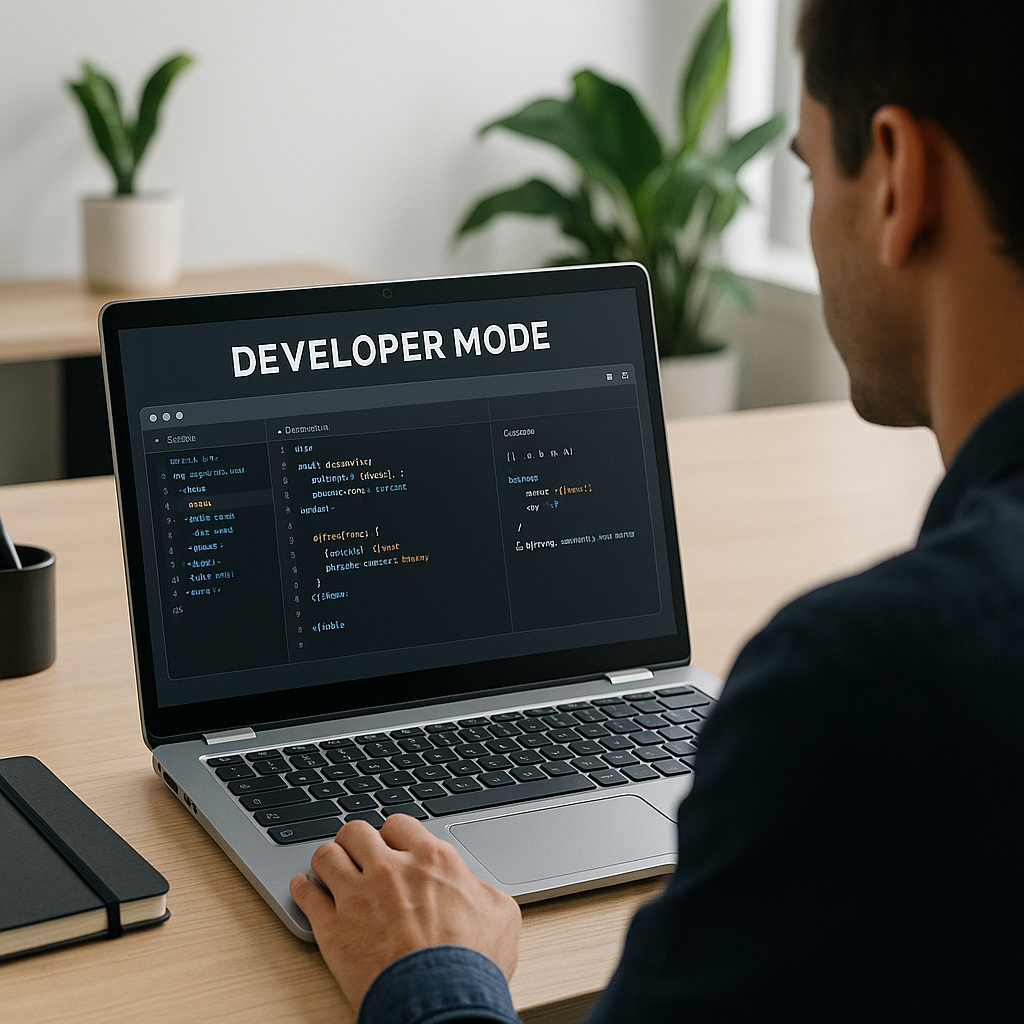
As we at Best Choice continuously explore technology to streamline operations and boost productivity, we often encounter devices like Chromebooks that offer simplified usability. One of the exciting features that Chromebook users may not fully realize is the Developer Mode. Understanding and enabling Developer Mode can tremendously enhance your Chromebook experience by unlocking advanced capabilities, allowing for the installation of applications not available on the regular Chrome OS and providing greater control over your device. In this article, we’ll take a detailed look at how to enable Developer Mode on a Chromebook and why it might be beneficial for your business or personal use.
Whether you are a business decision-maker looking to optimize your operations, or an entrepreneur wanting to embrace the latest technological capabilities, understanding Developer Mode can be a game-changer. From allowing you to run custom applications to giving you the freedom to tinker with settings and configurations, enabling Developer Mode opens up a world of possibilities that go beyond typical Chromebook functionalities.
What is Developer Mode?
Developer Mode is essentially a special mode on Chromebooks that allows advanced features not typically accessible to standard users. It provides a more customized user experience, enabling you to make changes and run applications that require additional programming. This is particularly useful for developers or anyone looking to create or test software, as well as businesses needing tailored solutions for their unique needs.
Why Enable Developer Mode?
Here are a few reasons why turning on Developer Mode may be worth considering:
- Custom Applications: You can install Linux apps, which may not be readily available in the Chrome Web Store.
- Control and Customization: Adjust and change system features that are normally locked in standard mode.
- Enhanced Security Measures: It allows you to implement custom security measures tailored to your business needs.
- Testing Ground: Ideal for testing new applications or websites in a controlled environment.
How to Enable Developer Mode?
Now, let’s walk through the steps to enable Developer Mode on your Chromebook. Please note that enabling this mode will wipe your device, so ensure you back up any important data before proceeding.
- Backup Your Data: Before doing anything, it’s essential to back up all your important files. Enabling Developer Mode will erase everything from your device.
- Enter Recovery Mode: Press the Esc + Refresh keys, then press the Power button to restart your Chromebook and enter Recovery Mode.
- Access Developer Mode: Once in Recovery Mode, press Ctrl + D to enable Developer Mode. A confirmation screen will prompt you, press Enter.
- Wait for Reset: Your Chromebook will begin the transition to Developer Mode, erasing all local data.
- Boot to Developer Mode: After the process is complete, your device will boot in Developer Mode. It may show a warning screen; just press Ctrl + D to bypass it.
Caution: Risks Involved
While Developer Mode brings many advantages, it also comes with risks. Your device may be more susceptible to malware, and it might void the warranty of your Chromebook. Therefore, evaluate carefully whether it’s right for you or your business.
Integrating Custom-Built Solutions
At Best Choice, we believe in the power of custom-built solutions. For businesses operating in Denmark and across Europe, having tools tailored to your specific needs can significantly enhance workflows and productivity. For instance, a cafe that requires a unique point-of-sale (POS) system could benefit immensely from custom software installed via Developer Mode. Manual processes could be automated and streamline transactions, subsequently boosting efficiency and sales.
DIY Solutions vs. Professional Help
While enabling Developer Mode offers you autonomy to experiment and customize your Chromebook, sometimes this can lead to complications. If you feel overwhelmed or uncertain of how to leverage these capabilities, we at Best Choice can help you make the most of your devices. Our team specializes in programming, software customization, and integration for various platforms and applications. We can help transform your business operations without the technical hurdles.
Conclusion
Enabling Developer Mode on your Chromebook can be an empowering experience that opens new doors for customization and control. Whether you intend to develop software, test applications, or simply optimize your business processes, this feature is undoubtedly a valuable tool. However, remember that with great power comes responsibility. If you’re looking for guidance or custom solutions that take your business processes to the next level, don’t hesitate to reach out to us at Best Choice. Let’s harness the potential of technology together!