# How to Use the Windows 11 Media Creation Tool to Create a Bootable USB Drive
In today’s fast-paced digital world, having a reliable operating system is crucial for your business. Whether you’re an entrepreneur running a small café or a decision-maker managing a large warehouse, the stability of your systems can directly impact your operations. One essential tool in ensuring that your device is prepared for any eventuality is the Windows 11 Media Creation Tool. This simple array of functions allows you to create a bootable USB drive, enabling you to install Windows 11 whenever necessary.
In this article, I will guide you through the process of using the Media Creation Tool to create a bootable USB drive and explain why having this resource at your disposal matters for your business.
## What Is the Windows 11 Media Creation Tool?
The Windows 11 Media Creation Tool is a free utility provided by Microsoft that enables users to download the latest version of Windows and create installation media— all from the comfort of their own workspace. For businesses, this means you can maintain system readiness with minimal downtime. Having a bootable USB drive allows you to troubleshoot issues or install the operating system when it’s time for an upgrade.
### Why It Matters
Making sure that your systems run smoothly enhances productivity, increases data security, and minimizes downtime— factors essential for any business. The process is straightforward, enabling you to handle installations without needing advanced IT skills. Here’s how to get started.
## Step-by-Step Guide to Create a Bootable USB Drive
### Step 1: Prepare Your USB Drive
Before jumping into the Media Creation Tool, ensure you have a USB drive with at least 8 GB of free space. Secure the drive and back up any important data, as this method will format the USB, erasing previous files.
### Step 2: Download the Windows 11 Media Creation Tool
– Head over to the official Microsoft website and find the Windows 11 download section.
– Locate the Media Creation Tool and download it.
### Step 3: Run the Media Creation Tool
– Open the tool by double-clicking the downloaded file.
– Accept the terms and conditions to proceed.
### Step 4: Select Your Options
When prompted, you have two main choices:
– **Upgrade this PC now** (recommended for immediate installations),
– **Create installation media (USB flash drive, DVD, or ISO file)**.
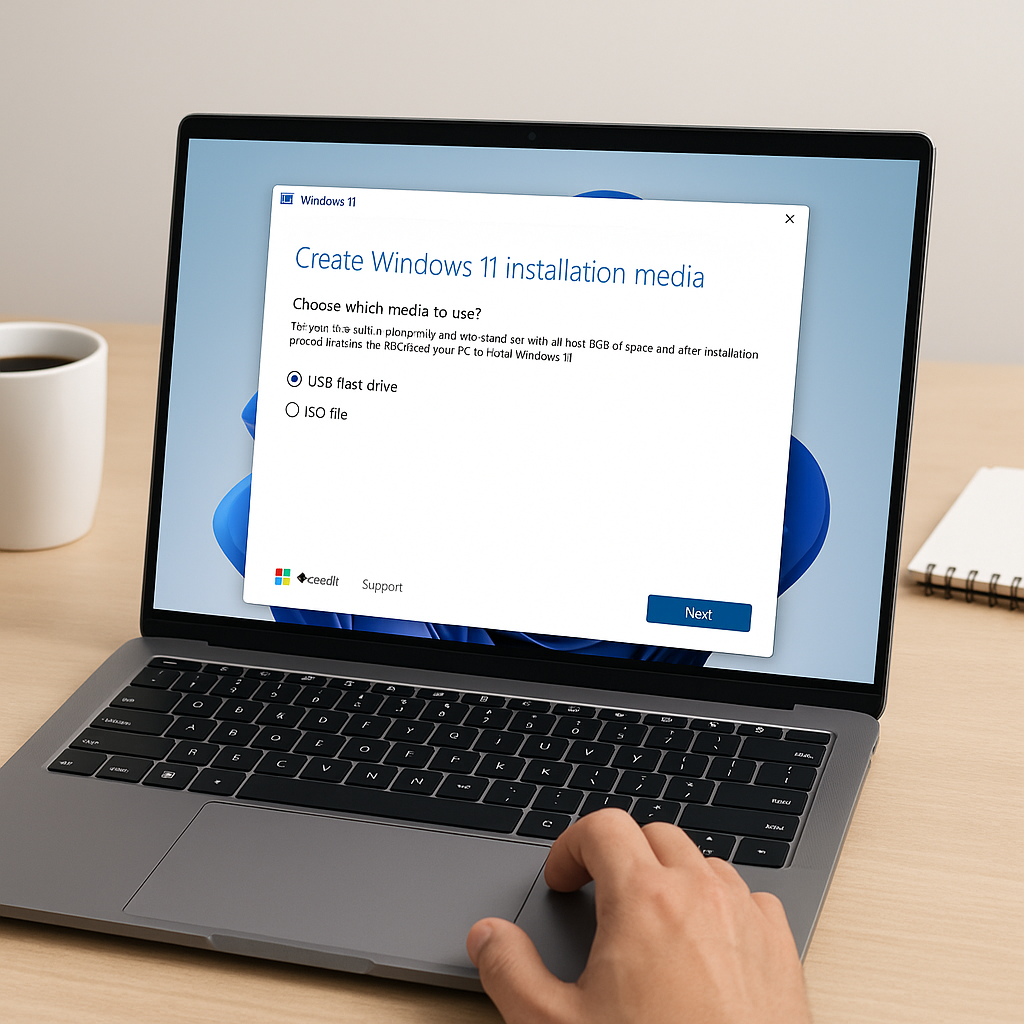
Since our focus is on creating a USB drive, select the second option and click “Next.”
### Step 5: Choose the USB Flash Drive Option
– Choose the “USB Flash Drive” option and click “Next.”
– Select the USB drive from the list of available drives.
### Step 6: Finish the Process
Finally, click on “Finish” and let the Media Creation Tool download the necessary files and create the bootable USB drive. The process may take some time, depending on your internet connection and computer speed.
## Practical Uses for Your Bootable USB Drive
Having a bootable USB drive handy can facilitate various scenarios relevant to any business:
### 1. System Recovery
Imagine a point-of-sale system in your café crashing right in the middle of a busy Saturday. With a bootable USB drive, you can swiftly reinstall Windows 11 and get back to serving customers without extensive delays.
### 2. Upgrading Devices
If you’re planning to upgrade older machines in your clinic or office to the latest Windows 11, the bootable USB drive simplifies the process. No need to deal with lengthy downloads or complicated steps.
### 3. Troubleshooting Issues
If software issues arise in your digital marketing agency, having the installation media allows your IT team to quickly troubleshoot and reinstall the system, minimizing downtime and ensuring client deadlines are met.
### 4. Replacing Hardware
In a warehouse with high-volume systems, replacing hardware can be a daunting challenge. A bootable USB drive allows you to set up new machines quickly and efficiently, making hardware changes smooth and simple.
## Benefits of Using Windows 11 Media Creation Tool
– **Flexibility**: Operate installations at your convenience, avoiding interruptions.
– **Time Efficiency**: Save time during troubleshooting or installation.
– **Cost-effective**: There are no extra charges for this tool, thereby minimizing your overhead costs.
## Tips for Optimal Usage
– **Keep Your USB Secure**: Store your USB drive in a safe place to avoid unauthorized access.
– **Regular Updates**: Periodically check the Microsoft website for the latest version of the Media Creation Tool. Regular updates ensure you’re working with the most current system features and security patches.
## Conclusion
In an age where technology plays a critical role in business operations, having the right tools readily available is essential. The Windows 11 Media Creation Tool equips you with the capability to create bootable USB drives, preparing your business for whatever challenges may arise. We at [Best Choice](http://web.best-choice.dk) understand the importance of technology in enhancing workflows and minimizing downtime. Should you require assistance in setting up your operations or need help with custom-built solutions tailored to your business needs, don’t hesitate to contact us for detailed support and services. Together, let’s ensure your technology works for you!