Gemini Could Be Accessing Your Emails: How to Check and Turn It Off
AI tools can make email easier to manage. Gemini may be able to summarize messages, find information in your inbox or help draft replies—but only when the relevant feature or connection is available and enabled for your account. For a business, that convenience needs to be balanced against privacy, customer expectations and internal data policies.
The key is understanding which Gemini feature you are using and what access it has. At Best Choice, we help businesses make practical decisions about AI and automation: use the right tools for repetitive work while keeping control of sensitive information. Here is how to check your settings and reduce unnecessary access.
1. What does Gemini’s access to email actually mean?
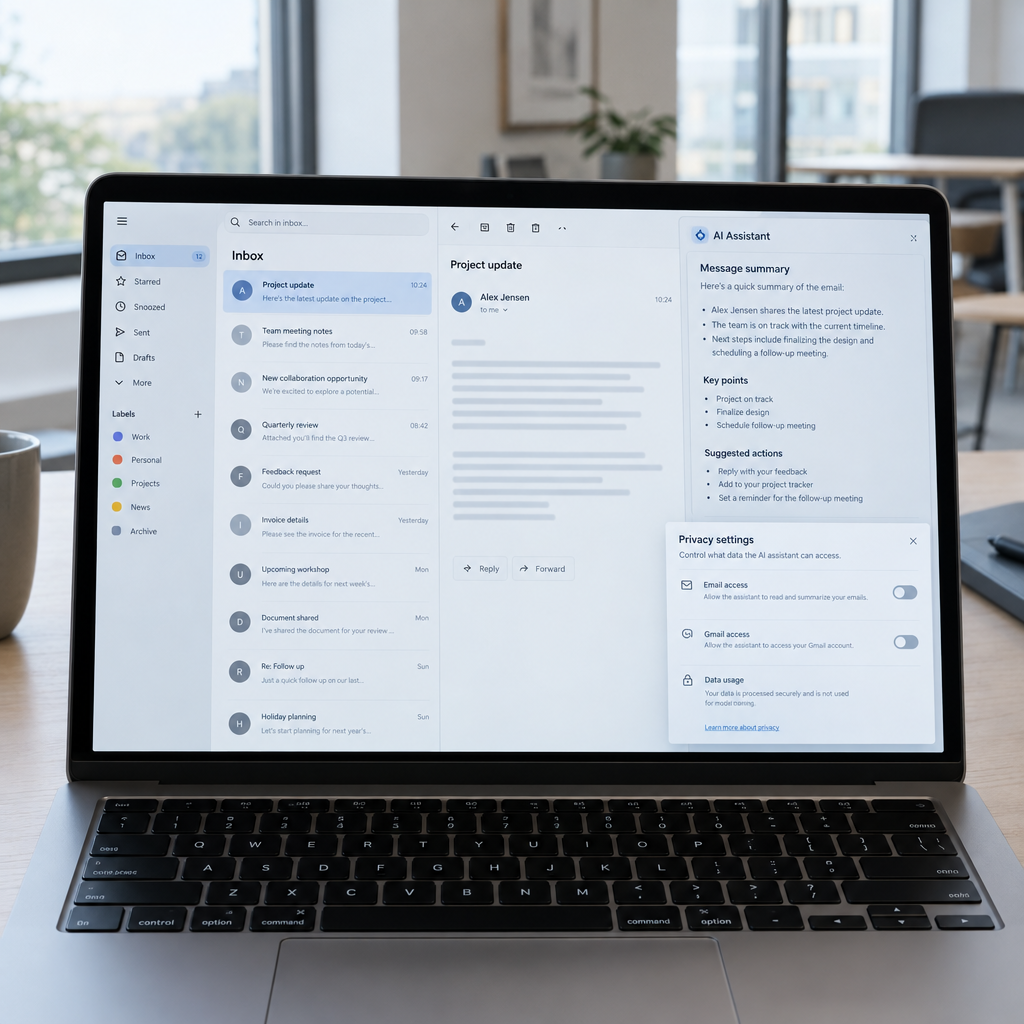
Gemini can work with Gmail in different ways, depending on your Google account, available features and settings. For example, an enabled Gmail integration may let you ask questions about messages or request a summary. Gemini features within Gmail may also help write or refine a reply.
This does not mean every Gemini feature automatically has unrestricted access to every email. Access depends on the account and the feature you use. Personal Google accounts and Google Workspace accounts may also have different controls and data protections, so check the settings and terms that apply to your specific account.
2. Check whether Gmail is connected to Gemini
If you use the Gemini app, review its connected apps or extensions. Look for Google Workspace or Gmail access in the Gemini settings. If you do not want Gemini to work with your email, turn off that connection where the option is available.
- Open the Gemini app and go to Settings.
- Find Connected Apps, extensions or a similarly named control.
- Review whether Google Workspace, Gmail or other Google services are connected.
- Disconnect any service you do not want Gemini to use.
Google changes menus and feature availability over time, so the exact labels may differ. After changing a setting, check the account again later—especially if you use more than one Google account or device.
3. Review Gmail’s own smart features and privacy settings
Gmail has settings for smart features and personalisation that are separate from the Gemini app’s connected-app controls. In Gmail, open Settings and look under General for smart features and personalisation options. Review the choices offered and switch off the features you do not want.
These controls can affect helpful functions such as automatic categorisation, suggested replies and personalisation across Google services. Turning them off may reduce convenience, but it can be appropriate for users who prefer fewer automated features. Remember that one setting may not control every AI feature, so review both Gmail settings and Gemini settings.
4. Understand the difference between personal and business accounts
For personal accounts, review Google’s current privacy information and the activity settings associated with the Gemini services you use. Some consumer AI interactions may be stored or handled under consumer service terms. Do not assume that every personal-account feature follows the same rules as a paid business service.
Google Workspace customers should check their organisation’s plan, administrator settings and applicable terms. Workspace administrators can manage access to Gemini features and related services, depending on the edition and configuration. Before enabling AI for staff, decide which users need it, what information they can access and how the organisation will communicate its policy.
5. Set clear rules for your team and customer data
Disabling a connection is only one part of good data protection. A clinic, accountant or online retailer should decide what staff may share with AI tools and whether customer, health, payment or employee information is allowed. Make the policy easy to follow, and train staff not to paste sensitive information into unapproved services.
For example, a warehouse team might use AI to draft a general delivery update without including a customer’s full address. A booking service could automate reminders while keeping medical notes out of the message-generation workflow. We at Best Choice can help map these processes and build access controls and automations around your real business needs.
6. Choose an email and AI setup that fits your business
Some organisations need a simple configuration of existing tools; others need a more controlled workflow. We can connect approved systems to your CRM, booking platform or webshop, restrict which data is passed to an AI service, and automate routine tasks such as sorting enquiries or preparing draft responses. The goal is to save staff time without giving every tool unnecessary access.
Open-source options may also be worth evaluating. Solutions such as Nextcloud can support self-managed collaboration, while Thunderbird is a popular open-source email client. They do not automatically remove privacy risks: hosting, backups, user permissions and integrations still need careful configuration. We can help you assess whether these tools—or your existing Google Workspace setup—make sense for your organisation in Denmark or elsewhere in Europe.
Take control of your email and AI settings
Gemini can be useful for summarising and drafting, but your business should decide when email access is appropriate. Start by checking connected apps, reviewing Gmail’s smart-feature settings and setting clear rules for sensitive information. Then test the changes with the people who handle customer and operational data.
If you want help reviewing your current setup or building a safer, more efficient workflow, contact Best Choice. We can help you integrate AI thoughtfully, automate routine work and keep your business in control of its data.