# Mastering Parental Controls on iOS: A Comprehensive Guide
As parents, we want to ensure that our children can navigate the digital world safely and responsibly. With the continual advancement of technology, it becomes crucial to take charge of what our kids access on their devices. Apple’s iOS offers robust parental control features that can help you manage your children’s use of their Apple devices effectively.
In this article, I’ll walk you through how to utilize these controls, specifically focusing on the features provided by “Screen Time.” By the end, you’ll be able to set up an environment that ensures your child’s digital activities are both safe and healthy.
## Why Parental Controls Matter
In today’s connected world, the internet opens up a wealth of information as well as potential hazards. From inappropriate content to excessive screen time, the challenges are many. Parental controls on iOS equip you to combat these issues effectively, protecting your children while allowing them to benefit from their devices.
Every business decision revolves around safety, productivity, and well-being—this principle holds true in parenting as well. By implementing parental controls, you’re not just restricting access; you’re promoting a healthy balance between technology use and real-world interaction.
## Setting Up Screen Time on iOS
To start, let’s dive into how you can set up Screen Time on your child’s device. Here’s how to do it:
1. **Open Settings**: Go to the **Settings** app on your child’s iOS device.
2. **Tap on Screen Time**: This is where all the magic happens.
3. **Set Up Screen Time**: If it’s your first time, tap on “Turn On Screen Time.” You’ll be prompted to set a Screen Time passcode, preventing children from altering your settings.
4. **Family Sharing**: If you have Family Sharing enabled, you can manage your children’s devices remotely.
### Monitoring Usage
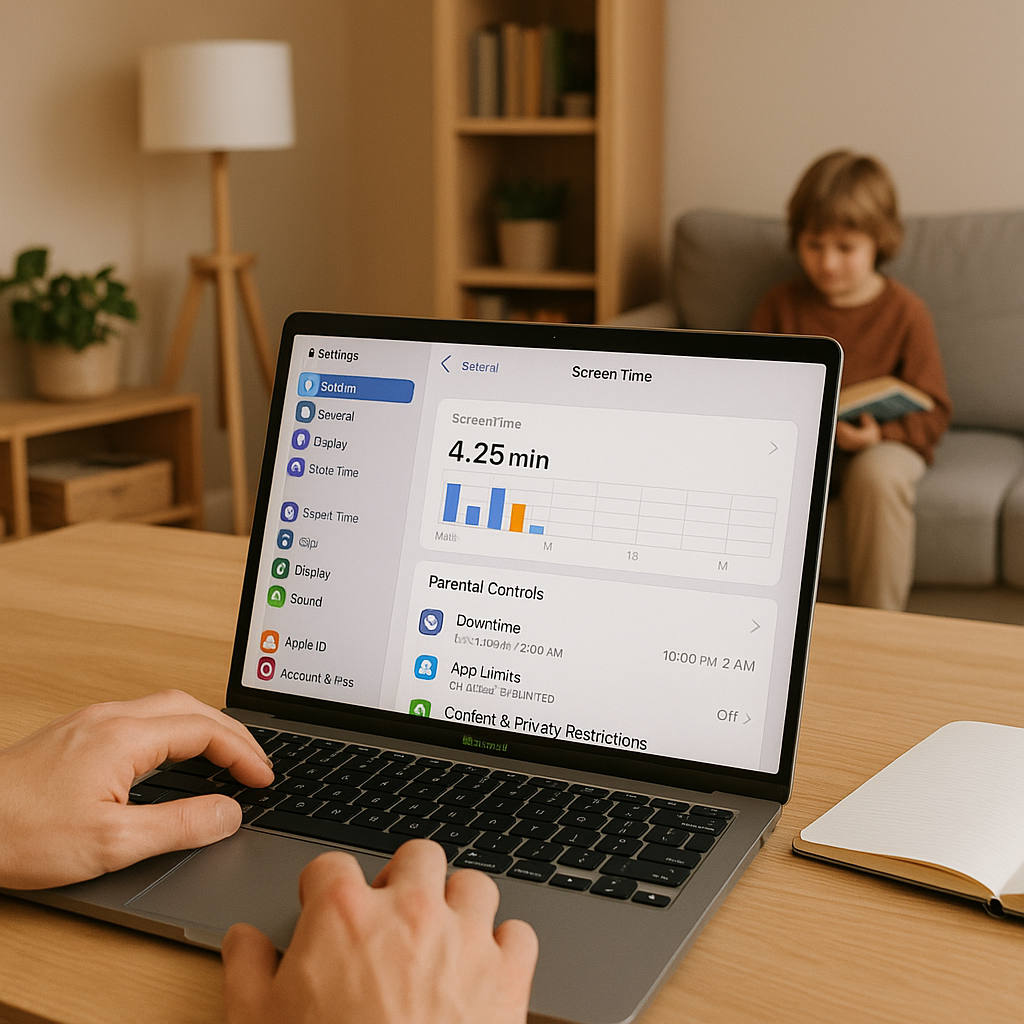
One of the standout features of Screen Time is its ability to monitor app and screen usage. By reviewing the **”Screen Time Report,”** you can see how much time your child spends on each app. This insight allows for informed discussions about which apps are beneficial and which may need monitoring or limiting.
### App Limits
With App Limits, I can set daily limits on specific apps or categories. For instance, if my child enjoys gaming but tends to lose track of time, I can limit gaming apps to just an hour a day. Here’s how:
1. Go back to **Screen Time** in Settings.
2. Select **App Limits** and tap **Add Limit**.
3. Choose the app or category you wish to limit and set your desired time.
This feature not only protects your child from excessive screen time but also encourages healthier usage habits.
### Downtime
In addition to setting limits, **Downtime** allows me to schedule time away from the device. For example, I can set downtime from 8 PM to 8 AM, during which only selected apps will be accessible. This can be particularly beneficial when it comes to establishing boundaries around bedtime routines.
1. In **Screen Time**, tap on **Downtime**.
2. Toggle it on and set your preferred time.
### Content & Privacy Restrictions
Understanding what your child is accessing is crucial. In the **Content & Privacy Restrictions** section, you can control content settings, including:
– **Web Content**: Limit adult websites or only allow specific sites.
– **Apps**: Set age restrictions for apps from the App Store.
– **In-App Purchases**: Disable in-app purchases to avoid unexpected charges.
To configure these, return to the main Screen Time menu and tap **Content & Privacy Restrictions** to customize these settings according to your preference.
### Communication Limits
In an age where connectivity is paramount, there’s further peace of mind with **Communication Limits.** This feature helps you manage who your child can communicate with during Downtime and throughout the day.
1. Tap on **Communication Limits** within Screen Time.
2. Set your preferred settings for contacts and communication during Downtime and allowed time.
### Encouraging Open Dialogue
While tools like Screen Time are beneficial, I find that fostering an open dialogue with my child about digital consumption is essential. Discuss the reasons behind the limits and the importance of responsible tech use. This approach not only reinforces boundaries but also empowers them to make smart decisions when they are unsupervised.
## Conclusion
Parental controls and the Screen Time feature on iOS can significantly impact your child’s interaction with technology. By understanding and effectively utilizing these features, we can create a safer and more responsible digital environment for our children.
If you feel overwhelmed or need help customizing settings to fit your family’s unique needs, don’t hesitate to reach out to us at Best Choice. We’re here to help you navigate not just technology, but also to ensure peace of mind in your parenting journey. Let’s work together to set up the right digital foundations for your family today!