# How to Get Started with Shortcuts on Your MacBook
In today’s fast-paced business environment, automation plays a crucial role in improving efficiency and productivity. For MacBook users, Apple’s Shortcuts app offers an incredible opportunity to streamline routine tasks and automate repetitive ones. Whether you’re juggling multiple projects, managing client communications, or just looking to save some time, automating mundane tasks can make a world of difference.
At Best Choice, we understand how important it is for business decision-makers and entrepreneurs to leverage technology for improved workflows. In this guide, I’ll walk you through how to get started with the Shortcuts app on your MacBook, making your daily operations smoother than ever.
What is the Shortcuts App?
The Shortcuts app allows you to create automated workflows on your MacBook using a simple, user-friendly interface. Think of it as your very own digital assistant that understands natural language. With this app, you can easily create scripts that execute various tasks with just a single click or voice command.
This app is especially beneficial in a work context. For example, a cafe owner can automate the process of generating daily sales reports, while a clinic manager can set reminders for patients and send out follow-up messages. The possibilities are endless!
Creating Your First Shortcut
To start automating your tasks, open the Shortcuts app on your MacBook. Here are some steps to kick off:
1. **Open the Shortcuts app**: Find it in your Applications folder or search for it via Spotlight.
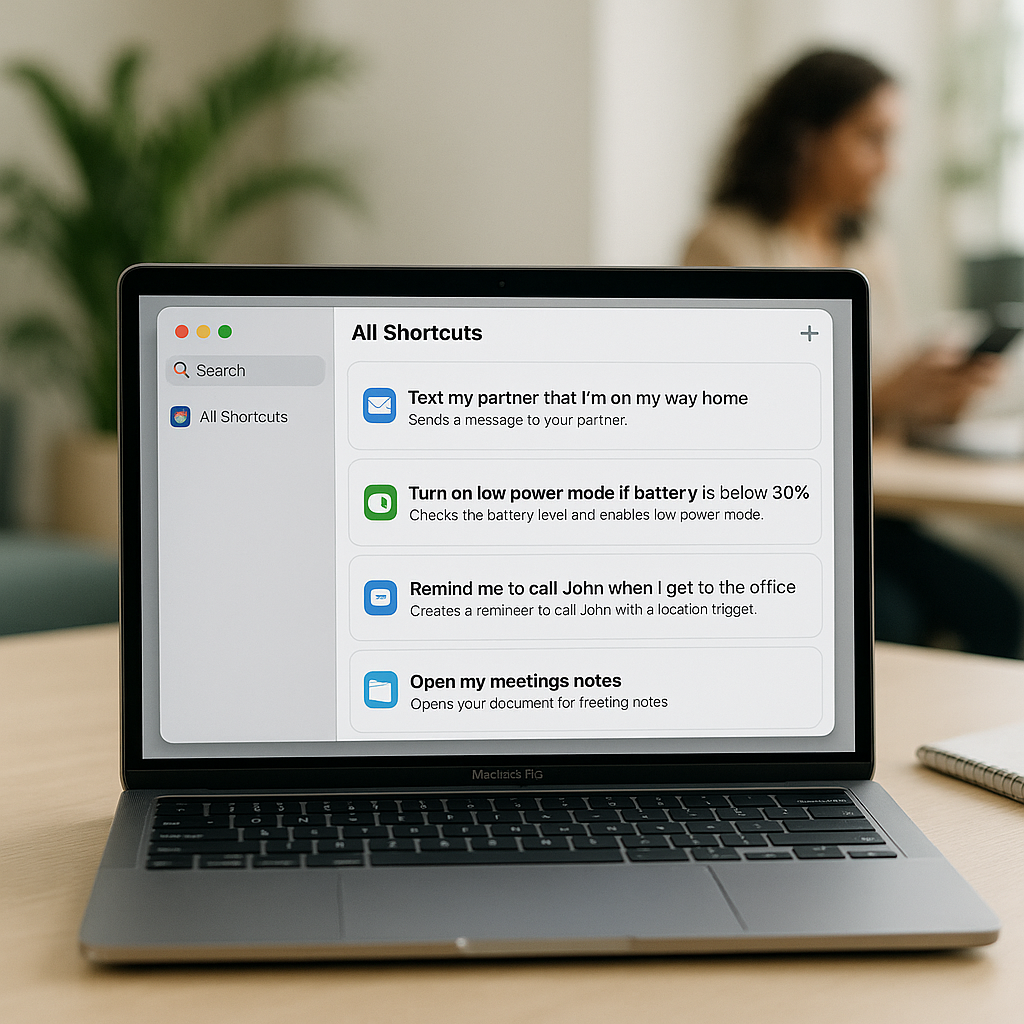
2. **Tap on “All Shortcuts”**: This will take you to a screen where you can view existing shortcuts as well as create new ones.
3. **Create a new shortcut**: Click on the “+” button in the upper right corner. You will be taken to a blank workflow.
4. **Add Actions**: From the list of available actions, you can select tasks you want to automate. For instance, if you want to send an email or post to social media, you can simply type “send an email” in the search bar and drag it to your workflow.
5. **Use Natural Language**: You can easily configure actions by typing in plain language. For instance, “Send an email to my team about the project deadline.”
6. **Save and Test**: Once you have added the desired actions, save your newly created shortcut and give it a test run to ensure everything works smoothly.
Popular Use Cases for Businesses
To make the most out of the Shortcuts app, consider these practical use cases tailored for businesses:
– **Project Management**: Automate task assignments or status updates that regularly need to be communicated to your team.
– **Email Management**: Set a routine for sending emails at specific times, or create a shortcut that compiles your daily correspondence.
– **Client Communication**: If you run a booking service or clinic, use shortcuts to send out appointment reminders and thank-you messages automatically.
– **Data Management**: Whether you are running a webshop or warehouse, automating data collection and reporting can help you keep track of inventory levels or sales numbers effortlessly.
Integrating Shortcuts with Other Tools
At Best Choice, we often help businesses integrate various third-party platforms with custom-built solutions. The Shortcuts app can seamlessly integrate with apps like Calendar, Reminders, Notes, and even your Mail app, enhancing your automation capabilities.
For example, if you are using a CRM system to manage customer relationships, creating a shortcut to automatically add new leads from your email can save you hours of data entry each week.
Using Existing Shortcuts and Templates
Don’t have time to create shortcuts from scratch? The Shortcuts Gallery offers a plethora of existing shortcuts you can use or customize. Simply browse through the gallery, find shortcuts that suit your business needs, and tweak them as necessary.
For instance, you may find a shortcut that can generate monthly sales reports or aggregate feedback forms. Take advantage of these ready-to-use templates to jump-start your automation efforts!
Actionable Tips for Effective Shortcut Creation
As you dive into the world of automation, keep these actionable tips in mind:
– **Start Small**: Don’t overwhelm yourself by trying to automate everything at once. Begin with simple tasks and gradually build your way up to more complex workflows.
– **Test Frequently**: After creating a shortcut, always run tests to ensure it performs as expected. This helps you identify any areas that may need fine-tuning.
– **Leverage Feedback**: If you’re part of a team, gather feedback from users on the shortcuts they’ve been using. Understand what works and what doesn’t to continuously improve the workflows.
– **Document Your Shortcuts**: Keep a log of the shortcuts you’ve created, including their purpose and how they are configured, for easy reference later.
Conclusion
The Shortcuts app on your MacBook is a remarkable tool for those seeking to elevate their business productivity. By automating repetitive tasks, you can save time, enhance efficiency, and even boost revenue. I invite you to explore these capabilities further and see how they can be tailored to meet your specific business needs.
If you find the prospect of diving into automation daunting, don’t hesitate to reach out to us at Best Choice. We specialize in creating custom-built solutions that seamlessly integrate with your existing systems, ensuring that you can focus on what truly matters — growing your business!