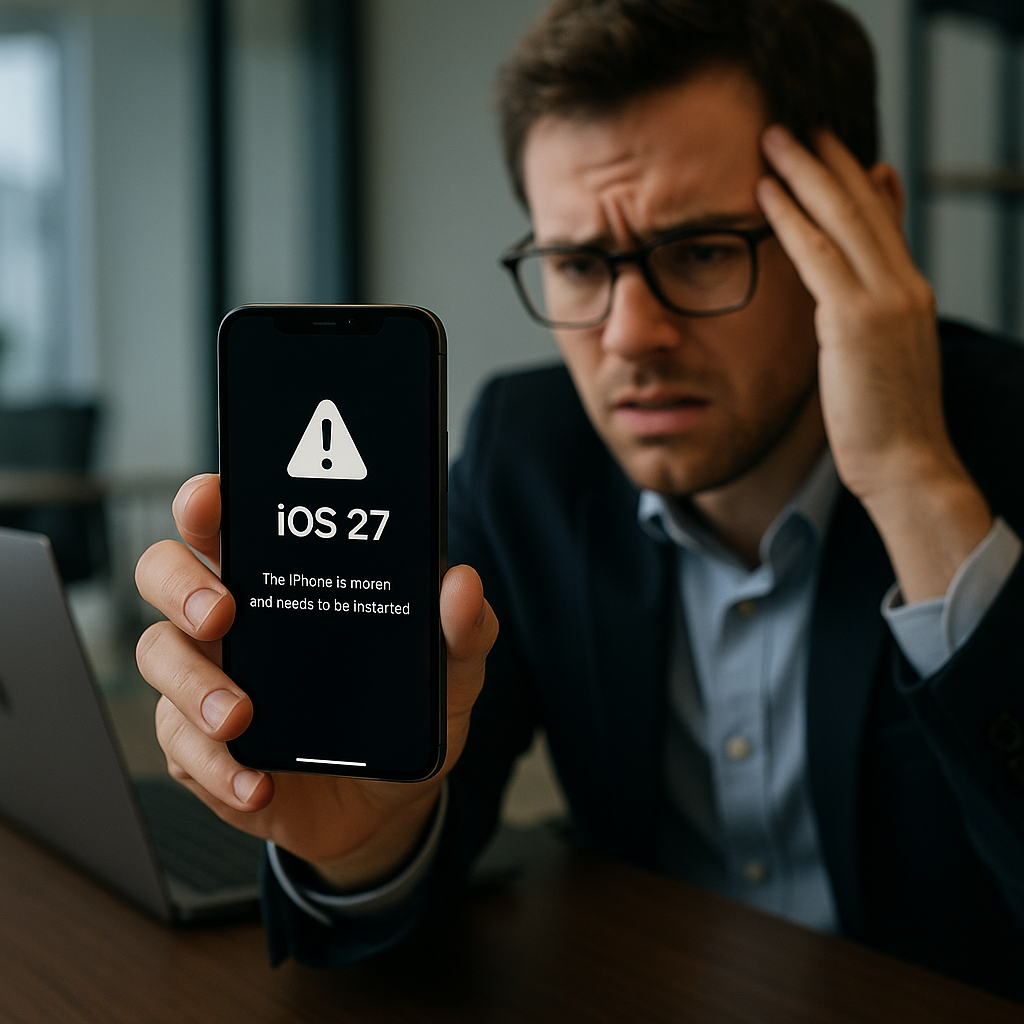
# An iOS 27 Bug That Can Temporarily Freeze Your iPhone: What You Need to Know
Have you ever experienced your iPhone suddenly freezing right after an update? It’s frustrating, isn’t it? As we dive deeper into technology, especially in the world of mobile devices, encountering glitches like freezing can be a nuisance. One of the latest instances is an inconsistency in iOS 27 that can cause your iPhone to temporarily freeze. If you’re a business decision-maker or entrepreneur relying on your device for critical tasks, this can lead to downtime, affecting productivity. But fear not — let’s explore how to tackle this hiccup and ensure your iPhone runs smoothly.
In this guide, I will not only provide you with some simple steps to mitigate the freezing issue, but I will also highlight the importance of proactive IT solutions to keep your devices in top shape. At Best Choice, we’re committed to ensuring businesses like yours can rely on technology without interruptions.
## Understanding the iOS 27 Bug
Apple’s iOS updates are generally aimed at improving performance, enhancing security, and introducing new features. However, with every update comes the potential for unexpected bugs — and the latest iOS 27 is no exception. Reports suggest that after installing this update, some users have experienced their iPhones freezing temporarily. This glitch usually occurs when the device is under heavy load or when multitasking with multiple apps open.
### Common Scenarios Where Freezing Can Occur
Understanding when your iPhone is likely to freeze can help in addressing the issue effectively. Here are some common scenarios:
1. **Heavy Multitasking**: Opening several memory-intensive applications at once can put a strain on your iPhone.
2. **Low Storage Space**: If your device runs out of storage, it may struggle to manage processes efficiently.
3. **Conflicting Apps**: Some third-party apps may not be fully compatible with iOS 27, leading to temporary freezes.
4. **Background Processes**: Automatic updates, backups, or syncing can consume resources and lead to freezes.
## Quick Fixes to Resolve iPhone Freezing
If you find your iPhone frozen, you don’t need to panic. Here’s what you can do:
### 1. **Force Restart Your iPhone**
If your phone becomes unresponsive, a force restart is the quickest way to regain control. For most iPhone models, you can do this by quickly pressing and releasing the Volume Up button, then the Volume Down button, and finally pressing and holding the Side button until the Apple logo appears.
### 2. **Free Up Storage Space**
As mentioned earlier, low storage can lead to freezing issues. Check your iPhone’s storage settings and delete unused apps, photos, and videos. Consider transferring important files to a cloud storage system to safely back them up while freeing up space.
### 3. **Update Your Apps**
Ensure all your apps are updated to their latest versions. Developers frequently release updates to ensure compatibility with the latest iOS, and thus it can help reduce the likelihood of slowing down or freezing.
### 4. **Reset All Settings**
If freezing persists, you might want to consider resetting all settings on your device. This process doesn’t delete your data but resets settings, which can help solve persistent issues.
### 5. **Contact Apple Support**
Should these solutions not help, it’s advisable to reach out to Apple Support. They can provide tailored guidance based on your specific issues.
## Preventative Measures for Smooth iPhone Operation
Taking proactive measures can help reduce the likelihood of encountering such glitches in the future. Here are some tips:
### 1. **Regular Device Maintenance**
At Best Choice, we believe in the value of maintaining your technology devices — just like any other machinery, your iPhone needs regular upkeep. Schedule routine checks for storage optimization and app updates.
### 2. **Invest in Business Mobile Management Solutions**
For businesses, managing multiple devices effectively can streamline operations. Consider employing Mobile Device Management (MDM) solutions that allow you to monitor, manage, and secure your company’s mobile devices in real-time.
### 3. **Utilize Cloud-based Solutions**
Cloud-based platforms can alleviate many issues related to storage capacity. For instance, integrating a cloud solution will help keep important files safe and accessible, ensuring your device’s performance isn’t adversely affected.
## Conclusion
Experiencing your iPhone temporarily freeze due to the iOS 27 bug is annoying, but it doesn’t have to impact your day-to-day activities. By following the tips provided and being proactive with device management, you can ensure minimal disruptions.
At Best Choice, we understand the importance of technology in keeping your business running smoothly. If you need personalized IT solutions or assistance in leveraging automation and cloud solutions for your organization, feel free to reach out to us. We’re here to help you navigate your technological needs efficiently!