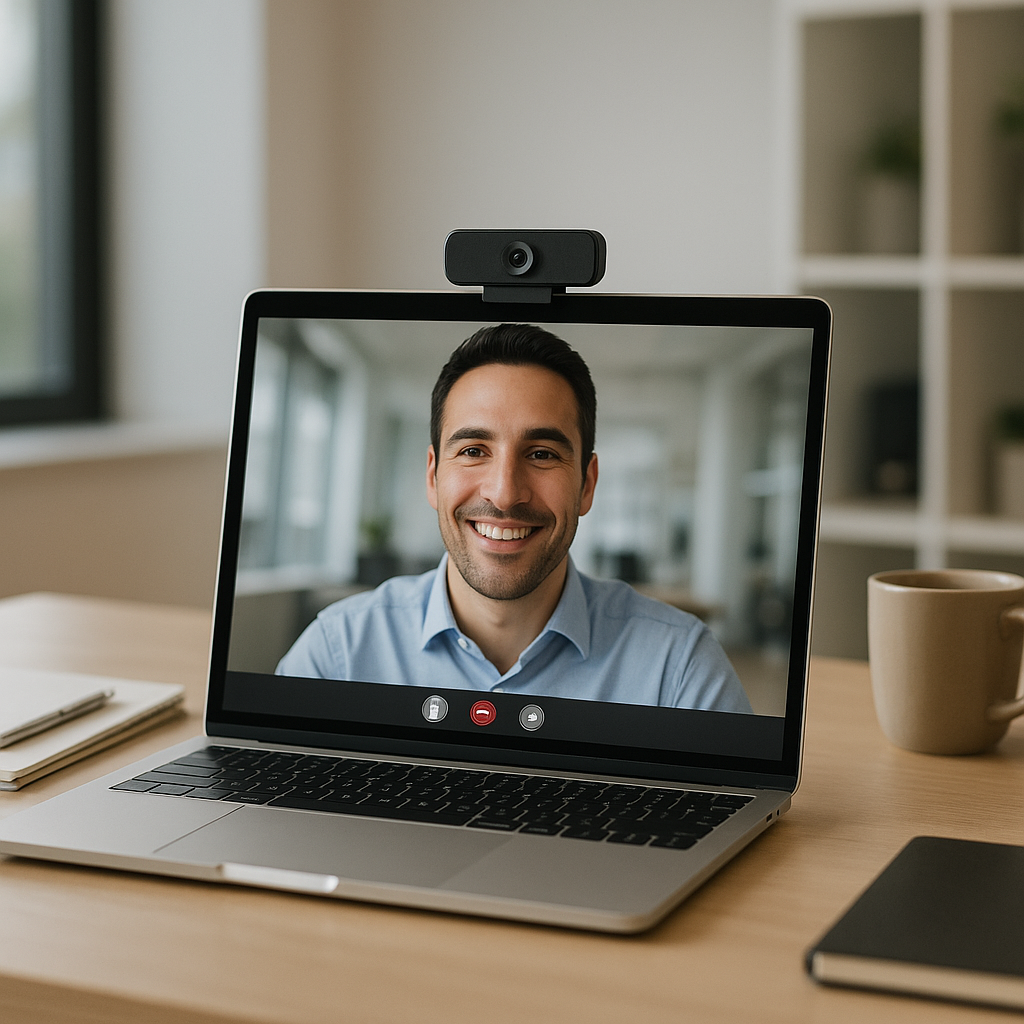
### How to Improve Your Laptop’s Webcam Quality: A Guide for Business Decision-Makers
In today’s dynamic business environment, virtual meetings are a cornerstone of effective communication. Whether you’re connecting with clients across Europe or collaborating with colleagues from various locations, a clear and professional webcam image is essential. At Best Choice, we understand how a solid digital presence can impact your business operations, and we’re here to help you enhance your video quality for a more polished virtual experience.
While most laptops come with integrated webcams that might not deliver the best image quality, there are several ways to improve their performance. Let’s explore some effective strategies, along with the benefits of investing in customized digital solutions tailored specifically for your business needs.
Understanding Webcam Limitations
The average laptop webcam often struggles with low resolution, inadequate lighting compensation, and poor audio capabilities. This can lead to grainy images and distorted sound, ultimately affecting your ability to communicate effectively. Recognizing these limitations is the first step toward enhancing your video meetings.
If your business relies on client presentations or remote consultations, having a high-quality webcam setup can significantly enhance your professional image. By addressing the quality issues of your laptop’s built-in camera, you can ensure your message is received clearly, fostering better client relationships and boosting overall productivity.
1. Optimize Your Lighting
Lighting plays a crucial role in video quality. Here are some tips to improve your lighting setup:
- Use Natural Light: Position yourself facing a window. Natural light provides balanced illumination and can enhance image clarity.
- Invest in Softbox Lights: If you’re working in low-light areas, consider investing in softbox lights that provide even lighting and reduce shadows.
- Avoid Backlighting: Ensure that bright lights are not behind you, as they can cause your image to appear dark and shadowy.
By creating an optimal lighting environment, you can enhance the overall video quality, making you look more approachable and professional during discussions.
2. Enhance Your Background
Your background can say a lot about your professionalism. Here’s how you can create a more appealing backdrop:
- Choose a Neat Setting: Clear away clutter that could distract your audience.
- Use a Virtual Background: Many video conferencing tools allow for virtual backgrounds, providing a professional visual even in less-than-ideal home office spaces.
- Consider a Green Screen: For a more sophisticated solution, invest in a green screen to create a more immersive experience.
By enhancing your background, you can shift focus onto your message rather than the surroundings, making your communication more impactful.
3. Upgrade Your Webcam
If you’re looking for a more permanent solution, consider upgrading your webcam. External webcams often offer higher resolutions and better image quality compared to built-in options. Here’s what to look for:
- Higher Resolution: Aim for at least 1080p resolution for a clear image.
- Auto-Focus: A webcam that automatically adjusts focus can prevent your image from appearing blurred.
- Integrated Microphone: A quality microphone can significantly improve audio clarity, enhancing overall communication.
This investment can provide immediate benefits that contribute to a more professional presence during virtual meetings.
4. Adjust Your Webcam Settings
Most webcams come with adjustable settings that can improve your video quality significantly:
- Brightness and Contrast: Utilize software settings to adjust brightness and contrast for optimal image clarity.
- Resolution Settings: Choose the highest resolution available for the best visual quality.
- Software Enhancements: Some video conferencing tools offer enhancements that can improve the overall image and sound quality.
Don’t overlook these small adjustments, as they can lead to noticeable improvements during video calls.
5. Utilize Software Solutions
There are several software solutions available that can help optimize your webcam experience. For instance:
- Virtual Camera Software: Programs like OBS Studio or XSplit allow for creative video overlays and multi-scene setups.
- AI Tools: Leverage AI-driven software for noise cancellation and background blurring to develop a professional atmosphere.
At Best Choice, we specialize in integrating these kinds of software solutions into your existing workflows, providing automation that can save you time and enhance your virtual communications.
6. Review Your Internet Connection
Finally, ensure that your internet connection is reliable. A slow connection can lead to stream lags and image distortions. Consider these steps:
- High-Speed Internet: Invest in a reliable and high-speed internet connection, particularly for video calls.
- Wired Connections: Use a wired connection instead of Wi-Fi, as this can offer more stability.
- Close Background Applications: Reduce bandwidth by closing applications that may be using your internet simultaneously.
By addressing your internet connectivity, you can enhance your video call experience and maintain professional communication.
Conclusion
Improving your laptop’s webcam quality may seem like a minor detail, but it can significantly impact your business communications. From investing in better lighting to exploring advanced software options, there are plenty of strategies to elevate your video presence.
At Best Choice, we understand that every business has unique needs, and we can provide tailored digital solutions to optimize your workflows. If you’re looking to enhance your virtual communication setups, don’t hesitate to reach out to us for expert advice and support. Together, we can elevate the professionalism of your online engagements.