Gmail’s “Undo Send” Feature: How to Give Yourself More Time
Have you ever clicked Send and immediately spotted a missing attachment, the wrong recipient, or a mistake in your message? Gmail’s Undo Send feature gives you a short window to stop an email from leaving your outbox. It is easy to overlook, but a quick change to your settings can give you up to 30 seconds to catch an error.
For a business, that small window can prevent an awkward follow-up or an email containing incorrect information. At Best Choice, we help businesses improve the systems around everyday communication, too—from connecting email with a CRM to automating follow-ups. Here’s how Gmail’s feature works, what it can and cannot do, and how to make email workflows more reliable.
1. What Gmail’s Undo Send feature actually does
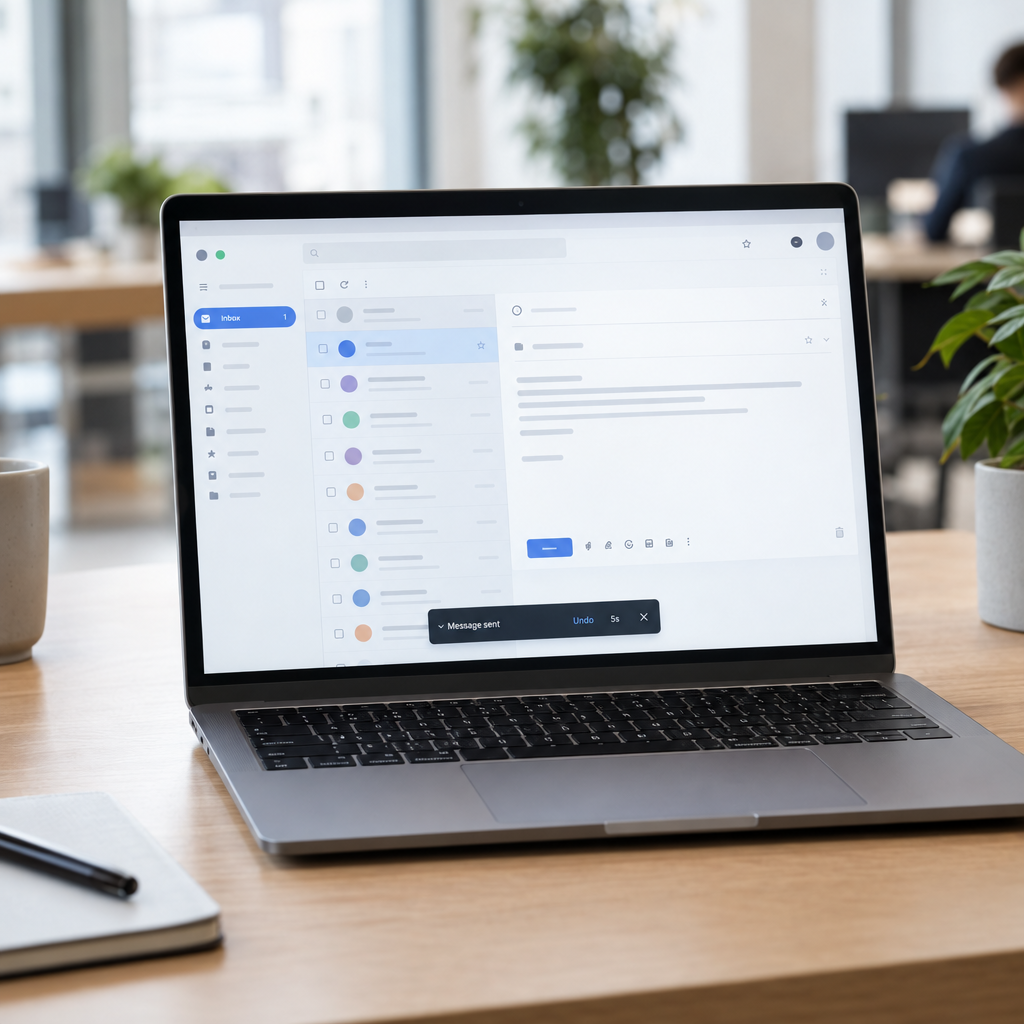
When you send a message in Gmail, it is held briefly before being dispatched. During that short delay, Gmail displays an Undo option. Click or tap it in time, and the message returns to a draft so you can edit or delete it.
Despite the name, this is not a way to recall an email after it has reached someone’s inbox. Once the delay has passed and Gmail has sent the message, you generally cannot retrieve it. Think of Undo Send as a brief safety buffer—not a replacement for checking sensitive emails before sending.
2. How to extend the time limit in Gmail
Gmail’s desktop setting lets you choose an Undo Send period of 5, 10, 20, or 30 seconds. To change it, open Gmail in a browser, select the gear icon, and choose See all settings. Under the General tab, find Undo Send, select your preferred cancellation period, then scroll down and click Save Changes.
If you send important business emails, 30 seconds is a sensible choice. It gives you a little more time to notice a typo, check the recipient, or realise that an attachment was not included. The option may appear differently in the Gmail mobile app, so check the app’s settings and rely on the Undo prompt immediately after sending.
3. When the extra seconds make a business difference
The feature is useful wherever a quick email can affect a customer relationship or business process. A café manager might catch an incorrect catering quote; a clinic administrator might notice that a booking confirmation has the wrong date; and an online store owner might spot a mistake in a supplier order.
It can also help teams working across Denmark and Europe, where a message may be written in one language and sent to a customer in another. A few extra seconds can help you catch a wrong name, an unclear delivery time, or an outdated price. For confidential or regulated information, however, prevention matters more than relying on Undo Send.
4. Build a better email-checking habit
Undo Send works best as a final safety net. Before sending, check the recipient and any people copied, confirm that the message has the right tone, and make sure links and attachments are included. For emails involving prices, contracts, customer data, or legal commitments, pause and review the details before you click Send.
- Check recipients: Confirm that autocomplete has not selected the wrong person.
- Check attachments: Make sure the correct file is attached and ready to share.
- Check commitments: Verify prices, dates, quantities, and delivery terms.
- Use drafts for high-stakes messages: Ask a colleague to review important communications before sending.
These simple habits reduce errors without slowing down routine communication. They are especially valuable when several employees share responsibility for customer emails or supplier orders.
5. Connect Gmail to your wider business workflow
A longer send delay cannot manage approvals, organise customer enquiries, or ensure that every lead receives a response. We at Best Choice can build and connect workflows that link email with your CRM, booking system, webshop, or internal tools. For example, a new enquiry could be recorded automatically, assigned to the right team member, and followed up if nobody responds within a set period.
We can also create tailored approval steps for sensitive messages, shared inbox processes, and automated notifications. Depending on your systems, these workflows may use existing platforms or custom-built integrations. The goal is to reduce repetitive administration while keeping people involved where judgement and care matter.
6. Know the limits and protect business information
Undo Send does not guarantee that an email can be stopped after its cancellation window, and it does not erase a message from a recipient’s inbox. If an email includes personal or confidential information, follow your organisation’s access and data-handling rules. Businesses in Denmark and across Europe should also make sure their email processes support applicable privacy and security responsibilities.
For Google Workspace users, an administrator may manage some organisation-wide settings, but the Undo Send period is a short delay—not a substitute for a formal approval process or secure document sharing. If an email contains sensitive data, consider whether email is the right channel in the first place.
Make a small Gmail setting part of a smarter workflow
Setting Gmail’s Undo Send period to 30 seconds is a quick improvement that can save you from common email mistakes. Pair it with a consistent review habit, clear team procedures, and sensible handling of sensitive information, and your business communication becomes more dependable.
If you want to connect email with your CRM, automate follow-ups, or improve how your team handles enquiries, contact Best Choice. We can help you design a practical solution around the way your business works.