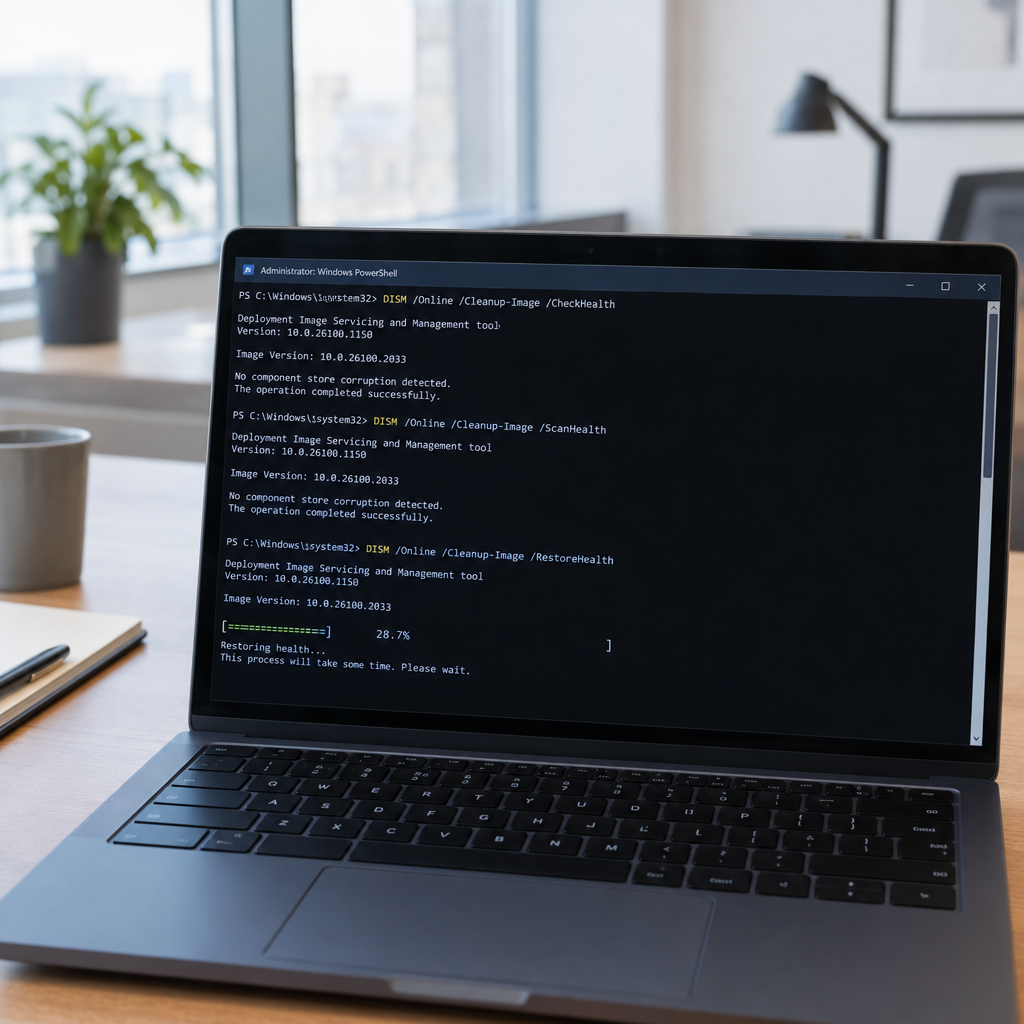
The Three DISM Commands You Should Know to Fix Your Windows System Images
A Windows computer that crashes, updates unsuccessfully or behaves unpredictably may have damaged system files. Windows includes a built-in command-line tool called DISM, short for Deployment Image Servicing and Management, which can check and repair the Windows component store that helps protect and restore system files.
Knowing the right DISM commands can help you troubleshoot a single PC—or give your IT team a more consistent way to support a fleet of business devices. At Best Choice, we help businesses turn repetitive IT tasks into clear, reliable workflows, including Windows maintenance and automation that fits their existing systems.
1. What DISM does—and when to use it
DISM checks the health of a Windows image and, when needed, repairs its component store. This is different from checking your personal files or scanning a hard drive for physical faults. If Windows components are damaged, repair may help resolve problems such as failed updates, missing system features or errors reported by other repair tools.
Run DISM from an elevated Command Prompt or PowerShell window. Search for the application, right-click it and choose Run as administrator. Before attempting repairs, save your work and, for important business devices, make sure you have a recent backup and follow your organisation’s IT procedures.
2. Check quickly with CheckHealth
Start with this command:
DISM /Online /Cleanup-Image /CheckHealth/Online tells DISM to check the Windows installation currently running on the computer. /Cleanup-Image selects the Windows image maintenance functions, and /CheckHealth performs a quick check for damage already recorded by Windows.
This is a useful first step because it is fast and does not perform a full scan. However, it is not as thorough as ScanHealth, so a clean result does not necessarily rule out every possible issue. If you are troubleshooting persistent errors, continue with the next command.
3. Run a deeper scan with ScanHealth
For a more detailed examination, run:
DISM /Online /Cleanup-Image /ScanHealthThis scan checks the component store more thoroughly and may take several minutes or longer. Let it finish, even if the progress percentage appears to pause. Interrupting a scan can make troubleshooting less clear and may require you to start again.
If DISM reports that the image is repairable, move on to RestoreHealth. If it reports no component-store corruption but the PC still has problems, investigate other possible causes, such as a faulty driver, low disk space, a problematic application or hardware trouble.
4. Repair the image with RestoreHealth
To ask Windows to repair the component store, run:
DISM /Online /Cleanup-Image /RestoreHealthBy default, Windows may use Windows Update to obtain the files needed for repair. The computer may need internet access, and the process can take time. Keep the device powered on and avoid closing the terminal while the command is running.
If repair fails, check the exact error message and your organisation’s network or update policies. In some managed environments, Windows Update access is restricted or an approved repair source is required. An IT administrator can select a suitable source, such as matching Windows installation media; the source must be compatible with the installed Windows version and edition.
5. Follow up with System File Checker
After DISM completes successfully, run System File Checker to check and repair protected Windows system files:
sfc /scannowDISM and SFC have related but different jobs: DISM repairs the component store, while SFC uses that store to help repair protected system files. Running DISM first can therefore help when SFC cannot repair files on its own. Restart the computer if prompted, then check whether the original problem has been resolved.
For a business, record the command results, device name and any error codes. This makes it easier to spot repeated issues and decide whether the cause is limited to one PC or linked to a wider update, image or configuration problem.
6. Make Windows maintenance manageable across your business
Running commands manually may be practical for one computer, but it becomes time-consuming when a café, clinic, warehouse or online retailer has many devices. Staff may depend on those computers for bookings, stock control, customer service or order processing. Delayed repairs can interrupt work and create unnecessary support requests.
We at Best Choice can help businesses build tailored IT workflows that standardise routine checks, collect useful results and flag problems for review. For example, a warehouse team could receive a simple report when a workstation needs attention, while an IT manager can see which devices were checked and which require follow-up. We can also connect these workflows with existing business systems where appropriate, while keeping access and data handling in line with company policies and relevant European requirements.
Before automating repairs, define who is authorised to run them, when they should run and how staff will be notified. Test the process on a small group of devices first, and keep a recovery plan for critical computers. Automation should make support more consistent—not replace sensible checks and human oversight.
Conclusion
The three core DISM commands—CheckHealth, ScanHealth and RestoreHealth—provide a straightforward path from a quick check to a deeper scan and repair. Follow a successful DISM repair with sfc /scannow, and investigate further if errors continue.
If Windows maintenance is taking too much time or causing disruption across your business, contact Best Choice. We can help you create practical IT automation and support workflows that keep your team focused on work.